Resolving the Persistent Airbag Warning Light Issue After Programming with RLink J2534
Pre-Programming Preparation:
I. Preliminary Requirements
PC Setup: Prepare a computer pre-installed with OE software and ensure it is fully charged.
- Tip: It is recommended to keep the PC connected to a power source throughout the programming process to prevent interruptions caused by power loss.
Network Connection: The computer must be connected via a wired network to ensure a download speed of ≥5MB/s.
- Note: Some ECU data files are large; excessive network latency or disconnection will directly cause programming failure.
Vehicle Power: Connect the vehicle to a dedicated stable voltage power supply (programming power supply) and maintain the voltage between 13.2V and 14.5V.
- Warning: Voltage fluctuations can cause programming failure. Ensure stable power supply.
- Parking: Park the vehicle on level ground to prevent the risk of rolling. An inclined surface may lead to accidents during programming.
II. Pre-Programming Inspection
- Circuit Check: Verify that the ECU power supply and grounding circuits are normal. Confirm that the ECU information to be programmed matches the current vehicle's ECU information exactly.
Refurbished ECU: If programming a refurbished ECU, strictly follow the manufacturer's operating guidelines.
- Some refurbished ECUs (e.g., anti-theft related) may fail OEM software verification.
- Used ECUs may need to be wiped (cleared of data) before use; otherwise, programming will fail.
- Recommendation: It is recommended to use a brand new ECU for programming, and a stable voltage power supply must be connected during the process.
III. Programming Procedures
- Follow Instructions: During programming, carefully read the prompts within the OEM software and execute steps strictly. Do not perform unauthorized operations.
IV. Troubleshooting Programming Failures
- Initial Check: If programming fails, first check the vehicle status and the connection of the diagnostic equipment.
- Retry Method: If the status is normal, it is recommended to let the vehicle sleep for 30 minutes before retrying. Power cycling or sleep mode can clear cached error data and improve the success rate of the retry.
- Display Issues: If the vehicle instrument cluster fails to display information correctly after a failure, it is recommended to re-program immediately. Do not disconnect the equipment or power, and do not turn off the ignition.
⚠️ Important Note: Please try to use a brand new ECU for programming, and ensure a stable voltage power supply is connected during the process.
Diagnostic & Resolution Steps
Take out the RLink device, connect it to the vehicle's OBD diagnostic port and the computer's USB port respectively, and ensure a secure connection.
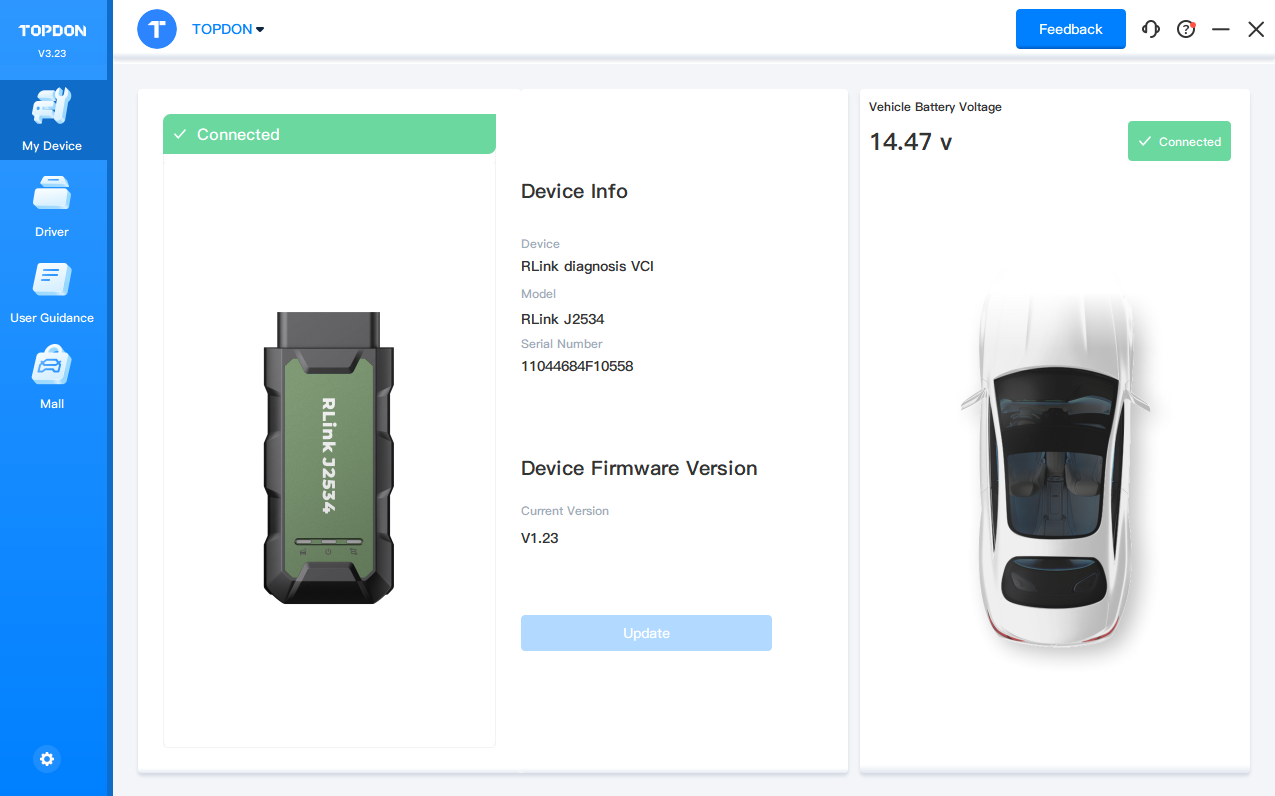
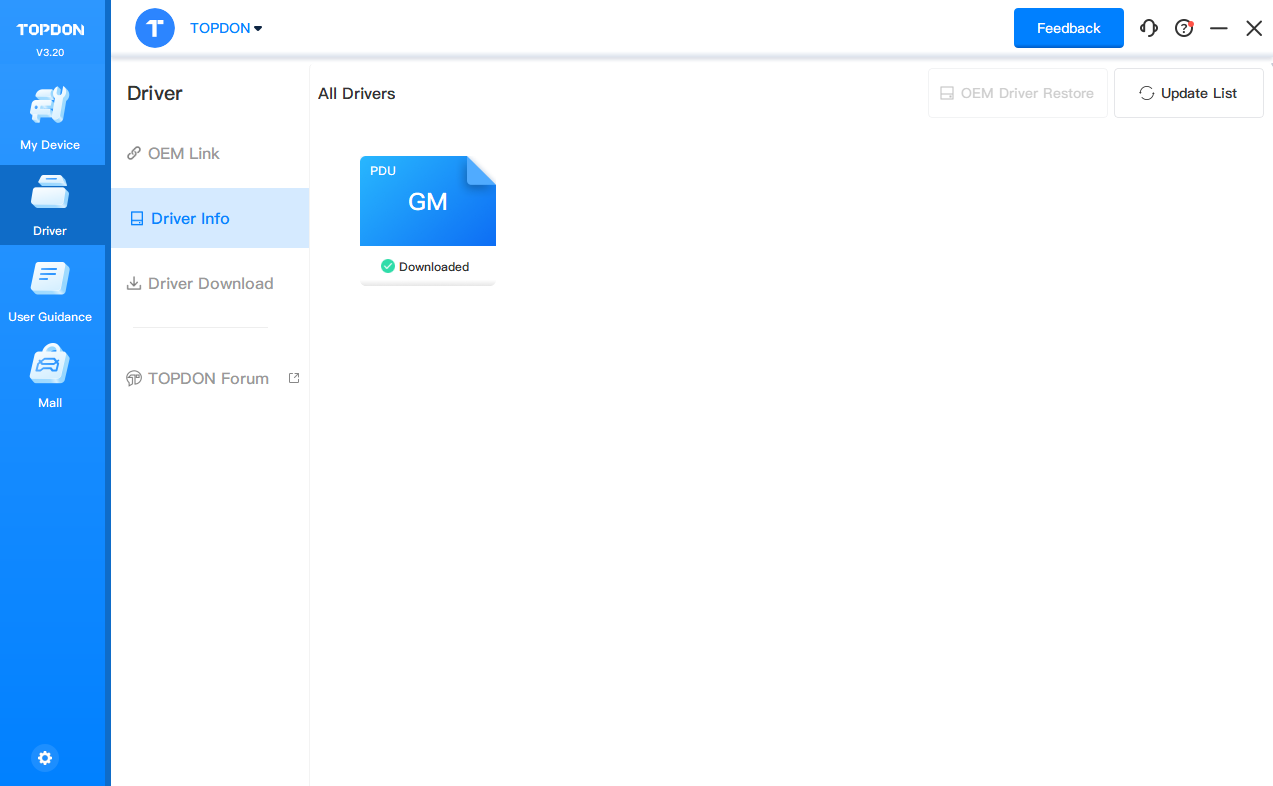
After the device is connected successfully, launch the RLink Platform software. Confirm the vehicle connection status through the connection information in the platform and verify if the driver has been downloaded.
Note: It is recommended to log in to your RLink Platform account to check for software or firmware updates. If updates are available, install them before proceeding with vehicle diagnostics.
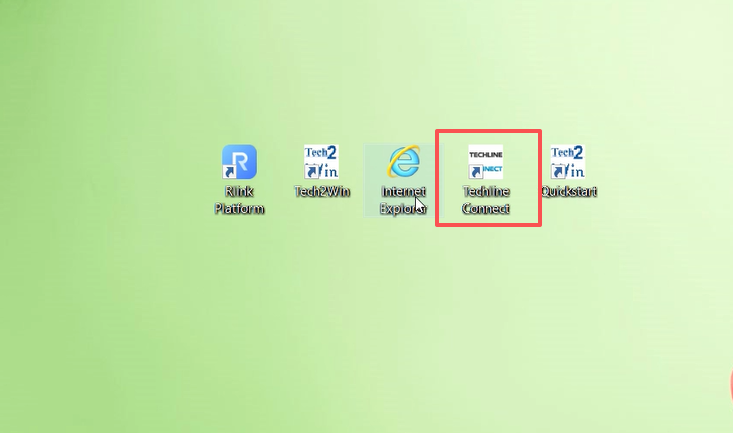
Double-click to open the [Techline] diagnostic software.
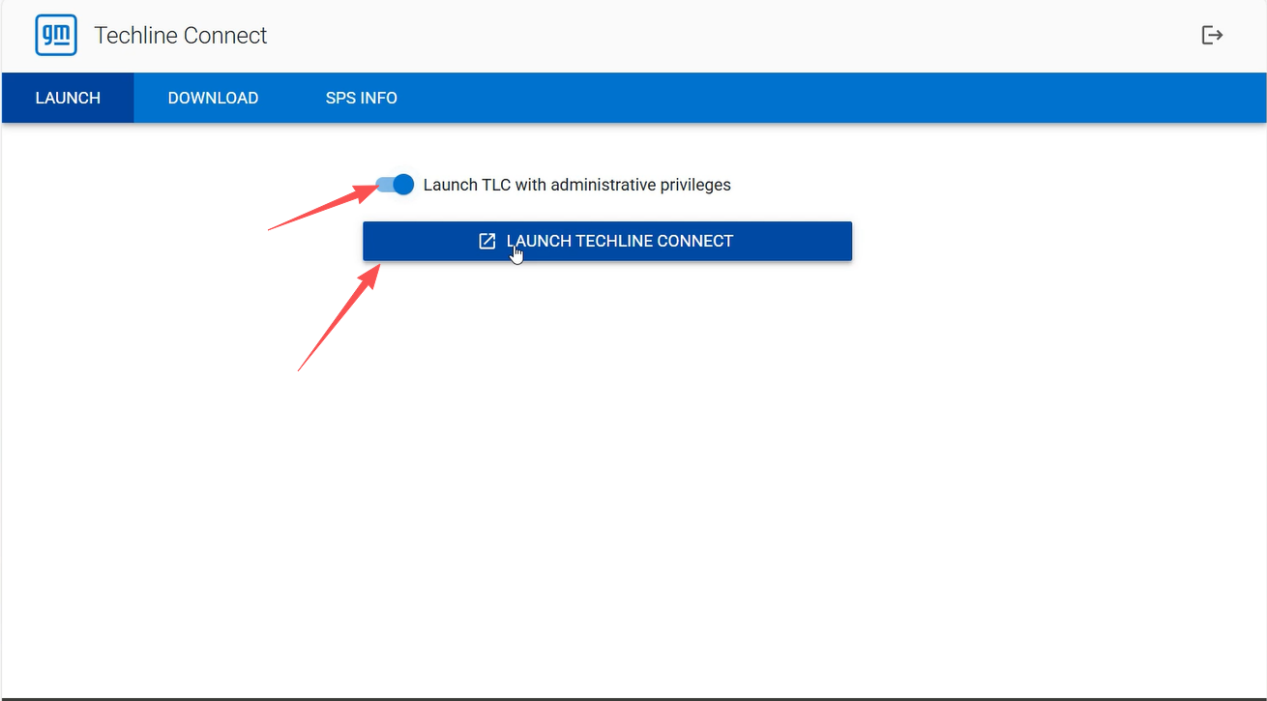
Select [Launch TLC with administrative privileges], then click [Launch Techline Connect] to start the Techline software.
Important: If the relevant Techline software is not installed, it will be automatically installed after launching Techline. Since the installation may take a long time, ensure sufficient time is reserved in advance to complete the installation and ensure smooth subsequent operations.
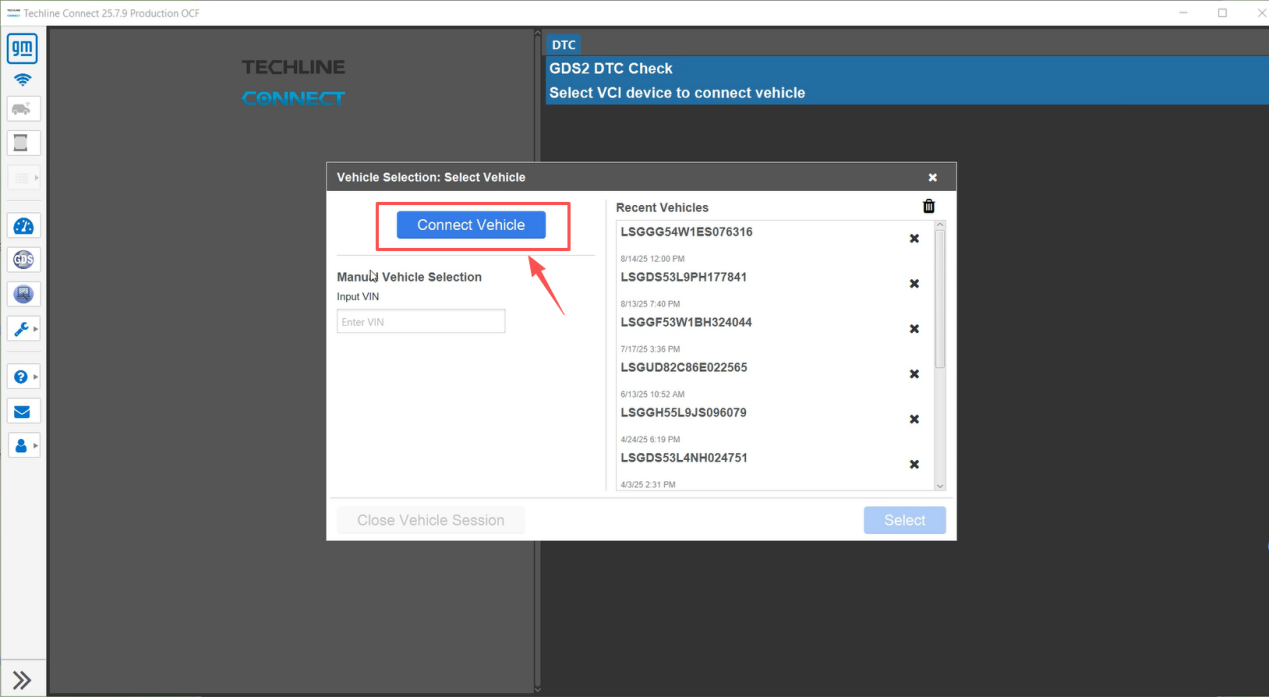
After entering the diagnostic software homepage, click [Connect Vehicle], then select the corresponding driver mode.
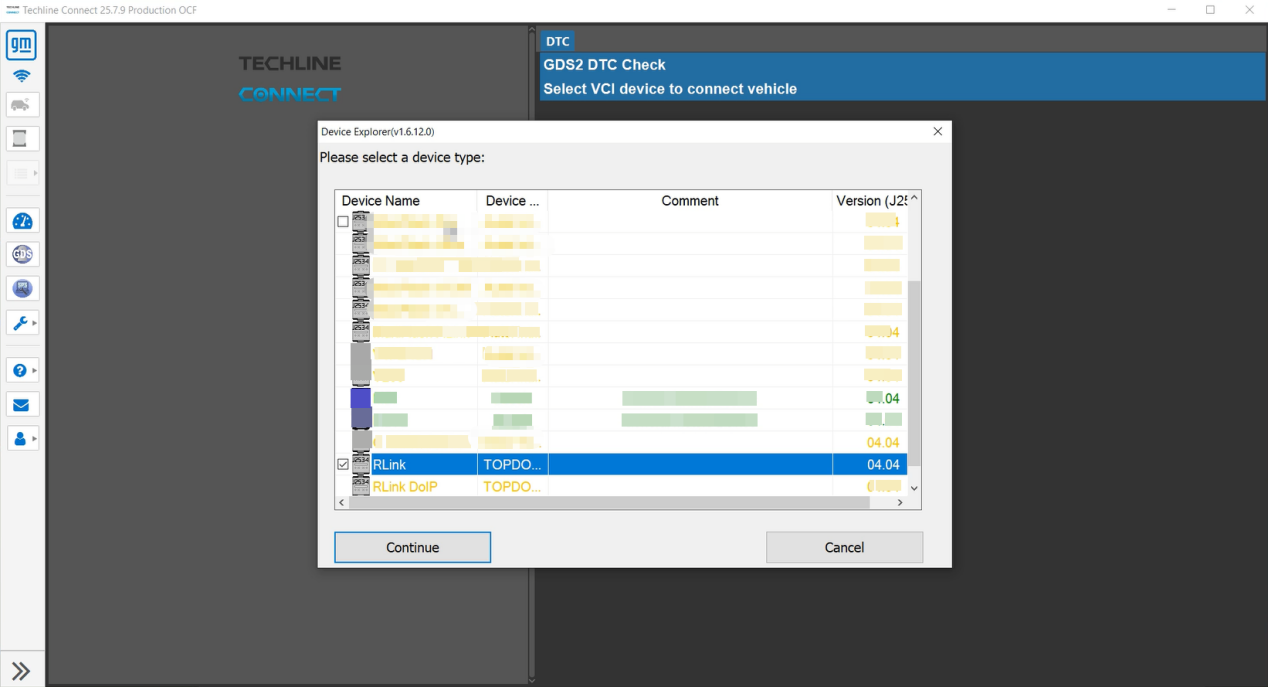
From the options, select either [RLink] driver mode or [RLink DOIP] driver mode (both modes are compatible with RLink device connections), then click [Continue] after selection.
Important: For diagnostic operations on vehicles supporting the DOIP protocol, [RLink DOIP] driver mode must be selected exclusively; otherwise, normal connection cannot be established.
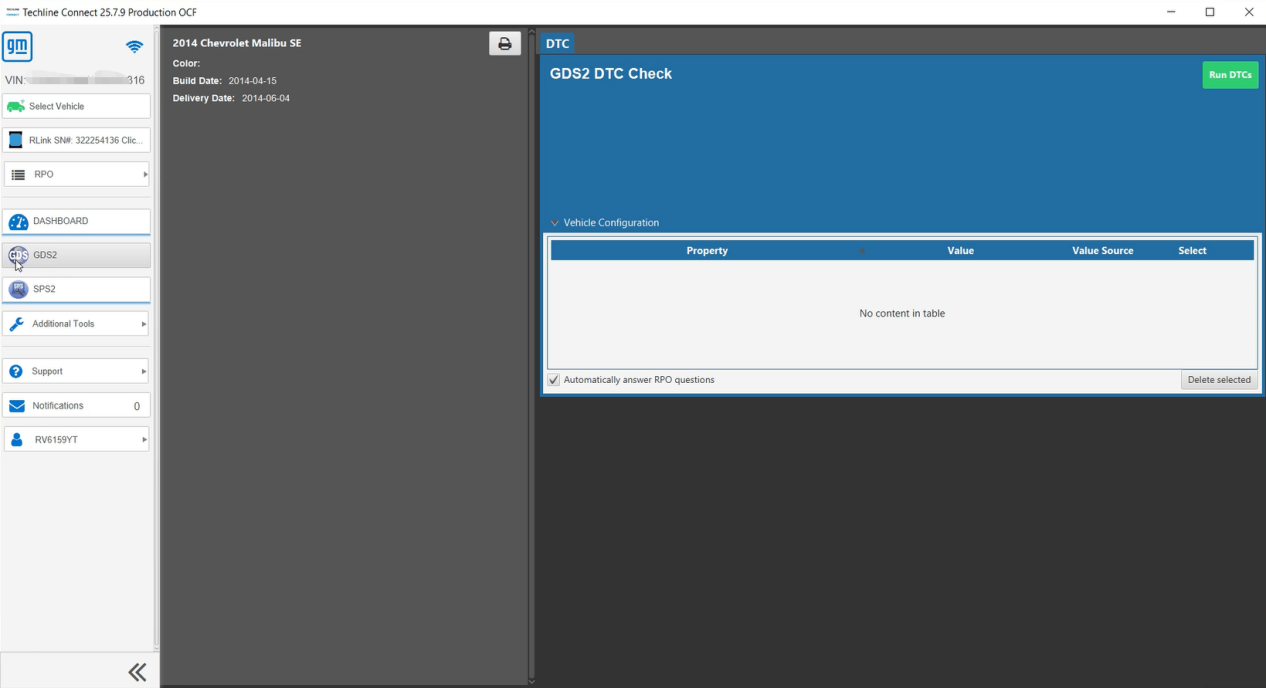
Click the [GDS2] icon to start diagnostics.
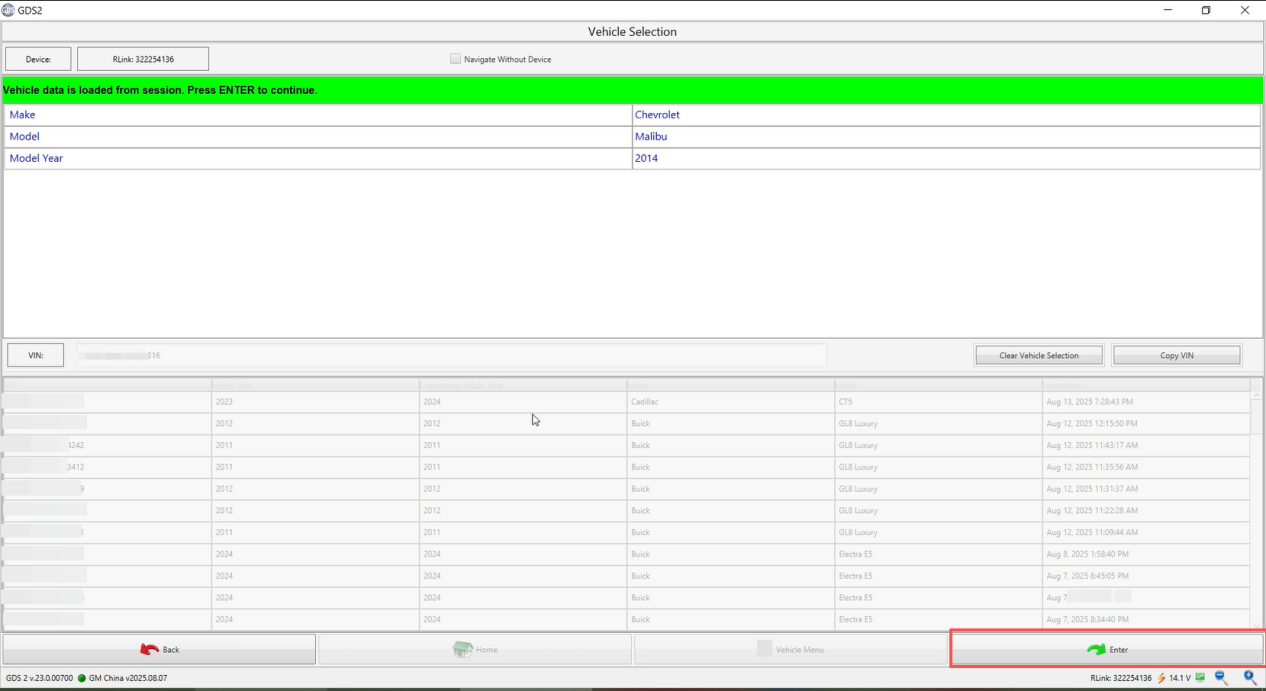
Verify the vehicle information is correct, then click [Enter].
Select the [Vehicle Diagnostics] function and click [Enter].
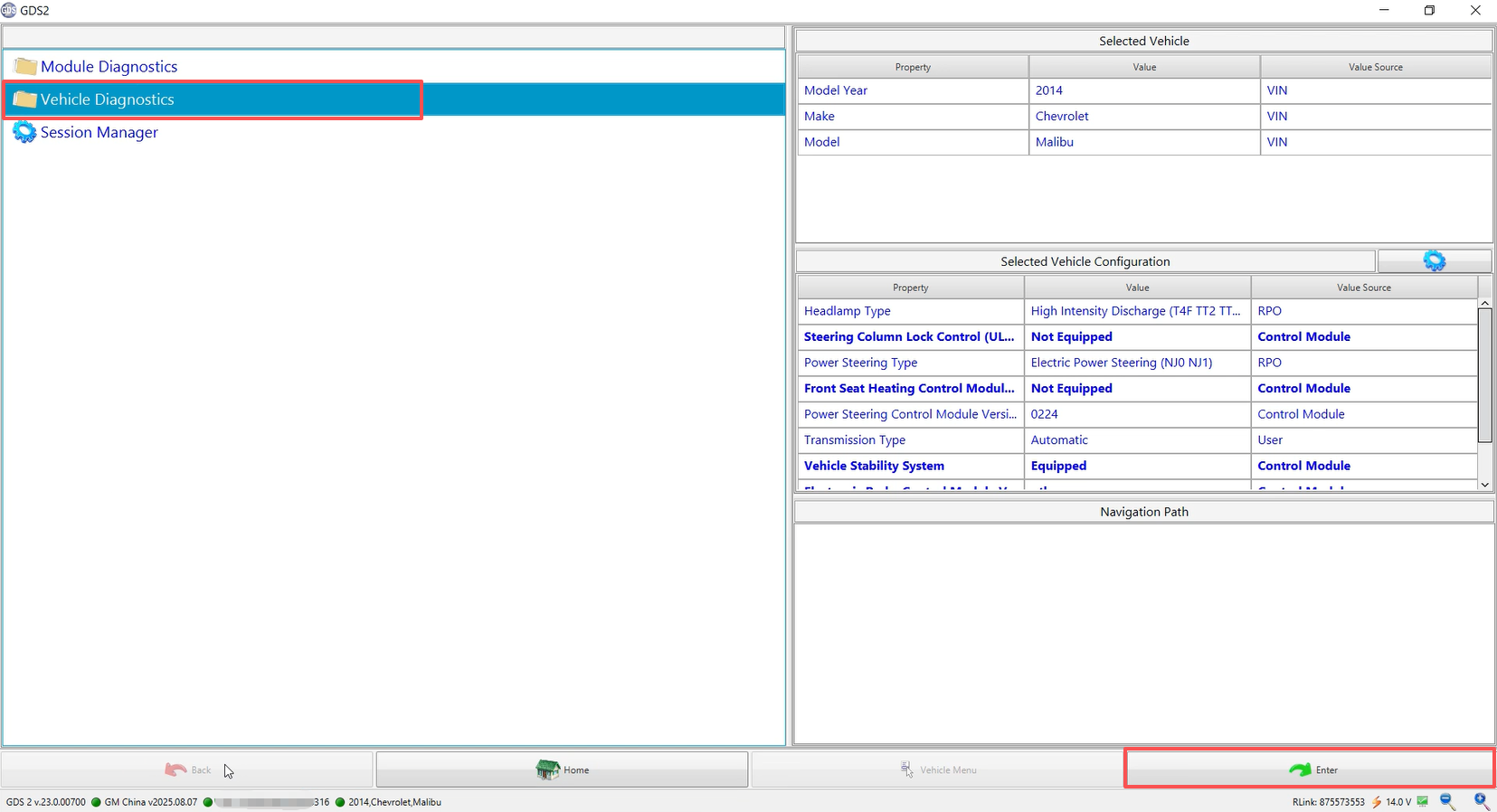
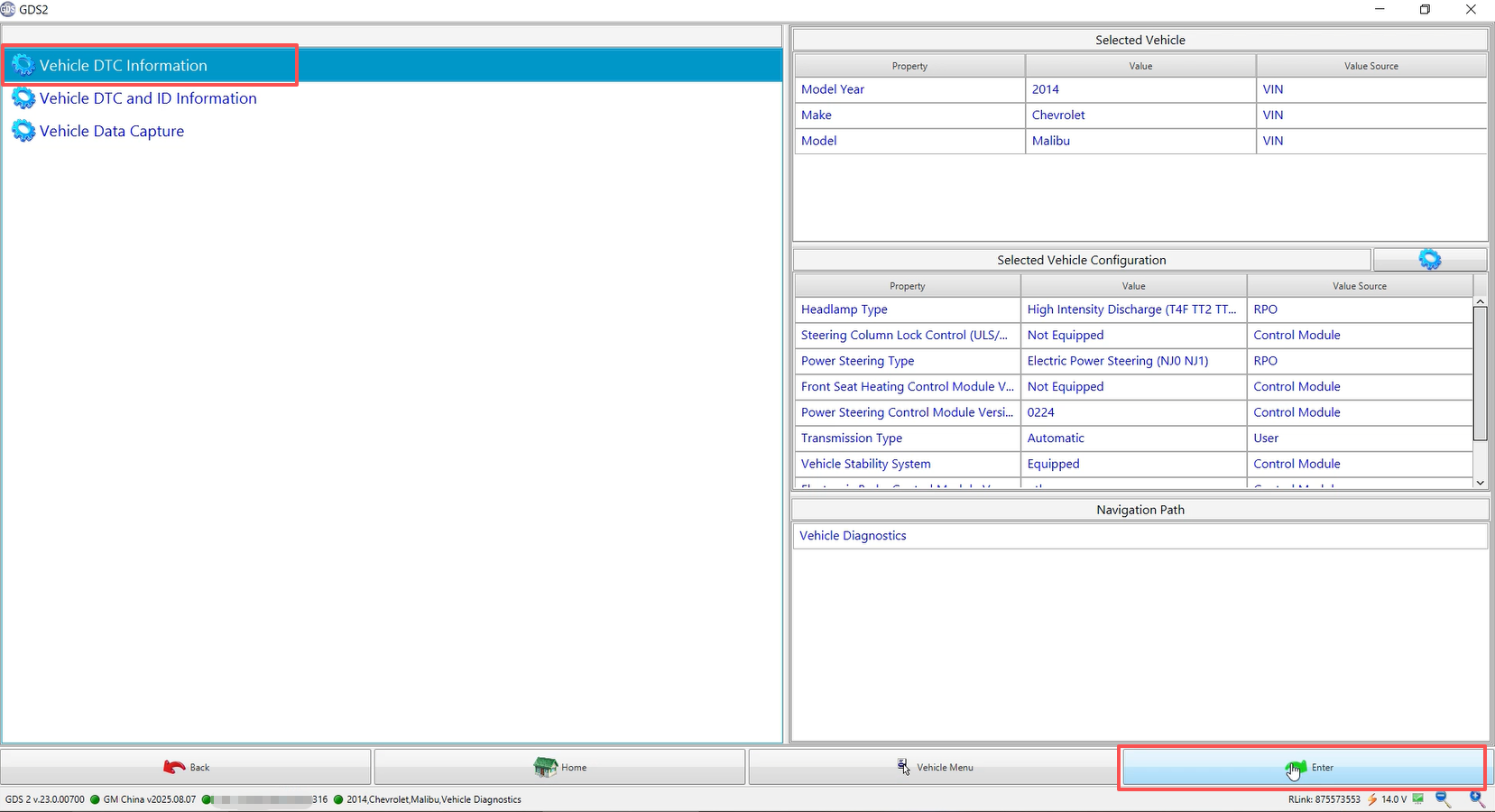
Select [Vehicle DTC Information] > [Enter], read all diagnostic trouble codes (DTCs), and clear them completely.
Note: This operation ensures that the subsequent matching process is not interfered with by historical DTCs and can proceed smoothly.
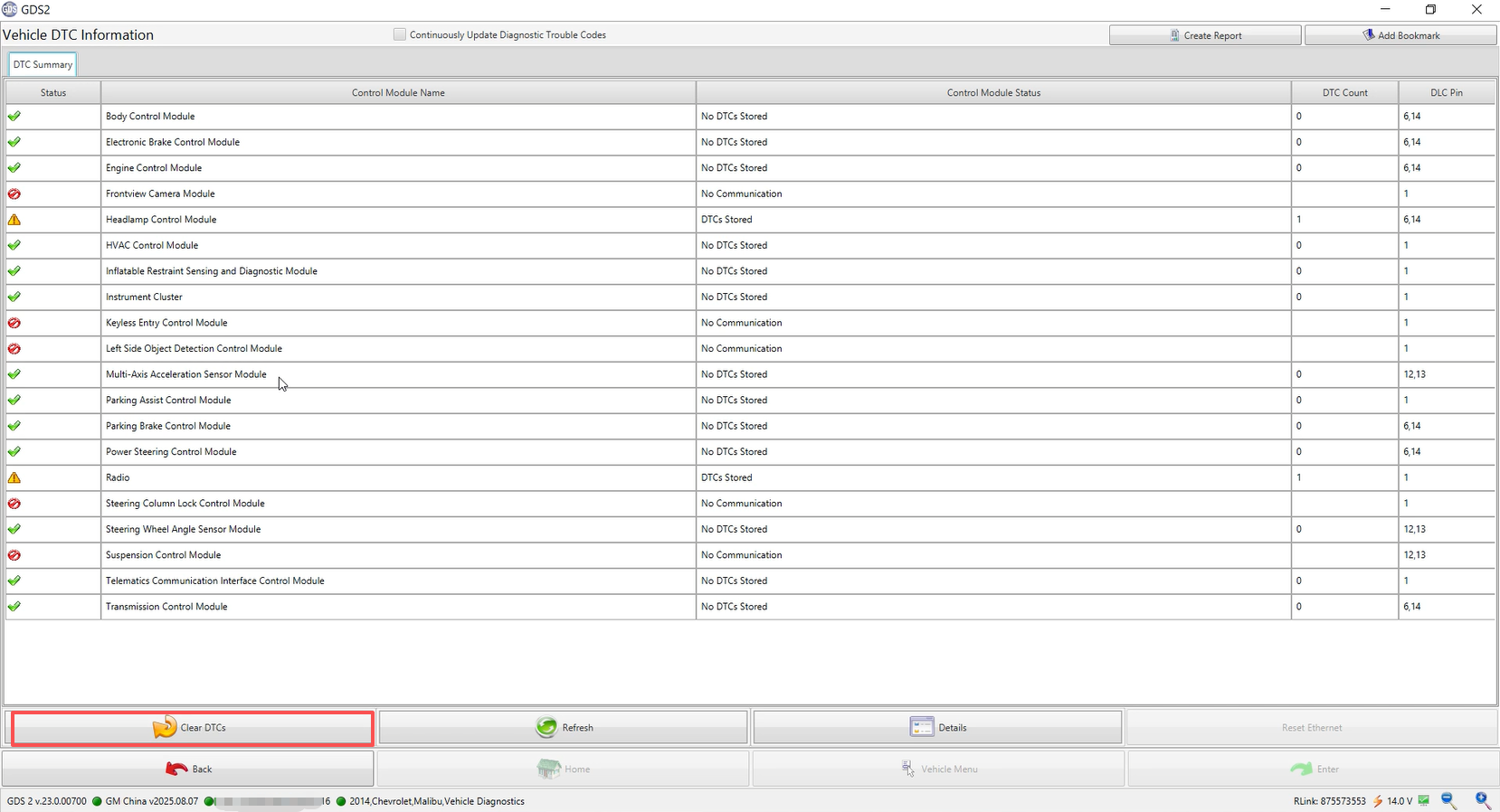
After clearing the DTCs, navigate to the location shown in the reference image, select the [Module Diagnostics] option, and press [Enter] to access the vehicle's control module selection page.
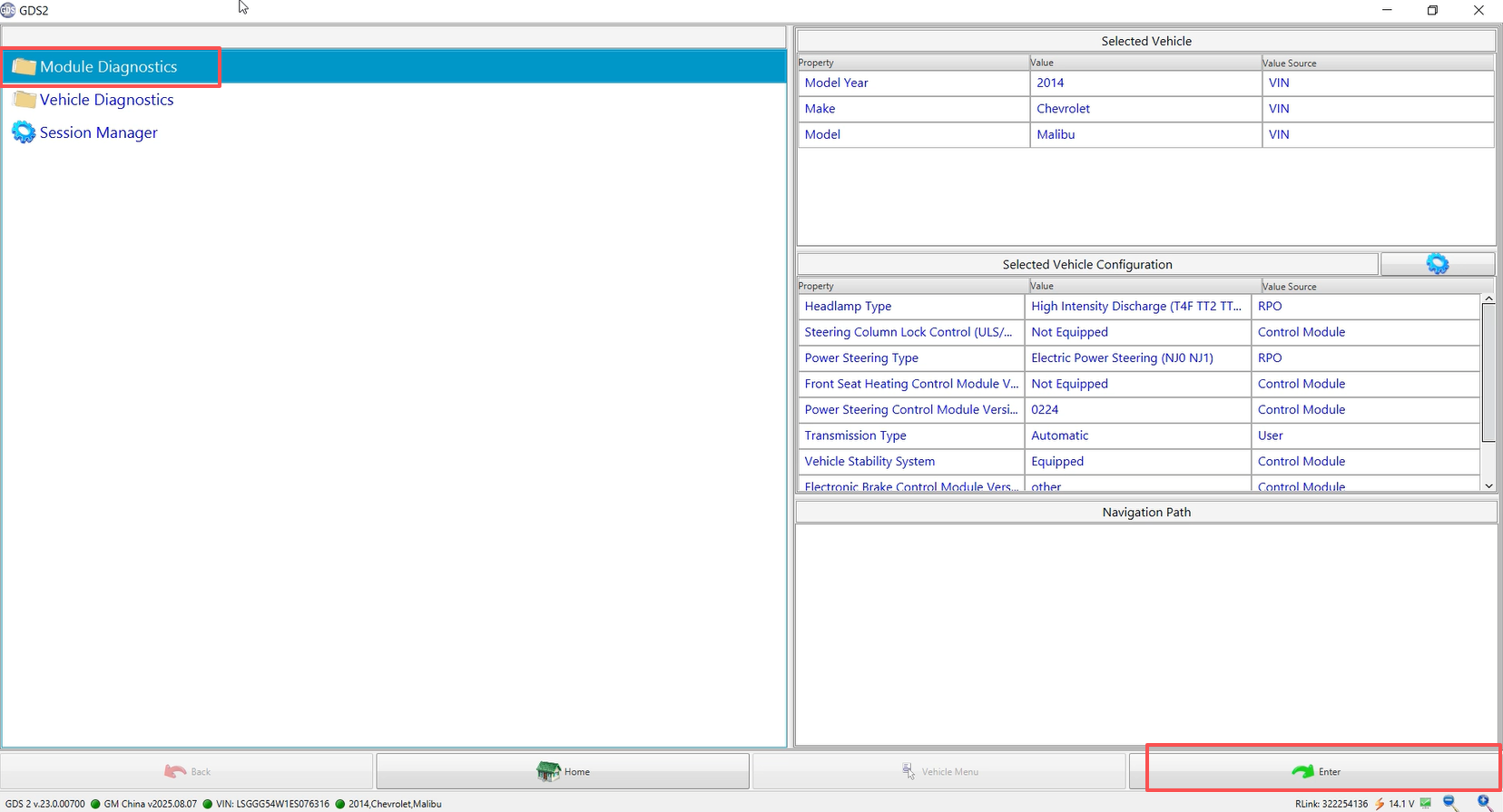
Select [K36 Inflatable Restraint Sensing and Diagnostic Module] and click [Enter].
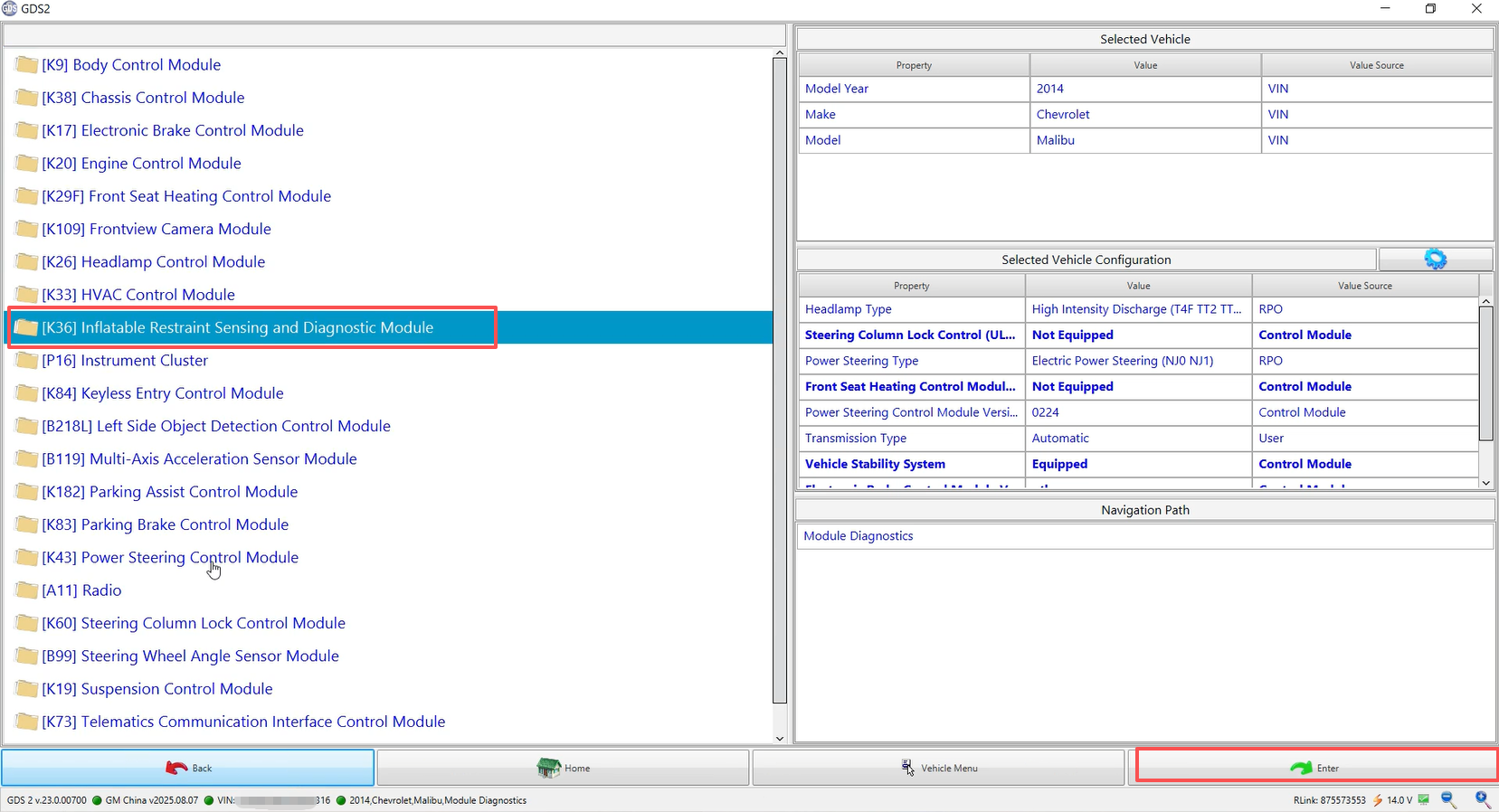
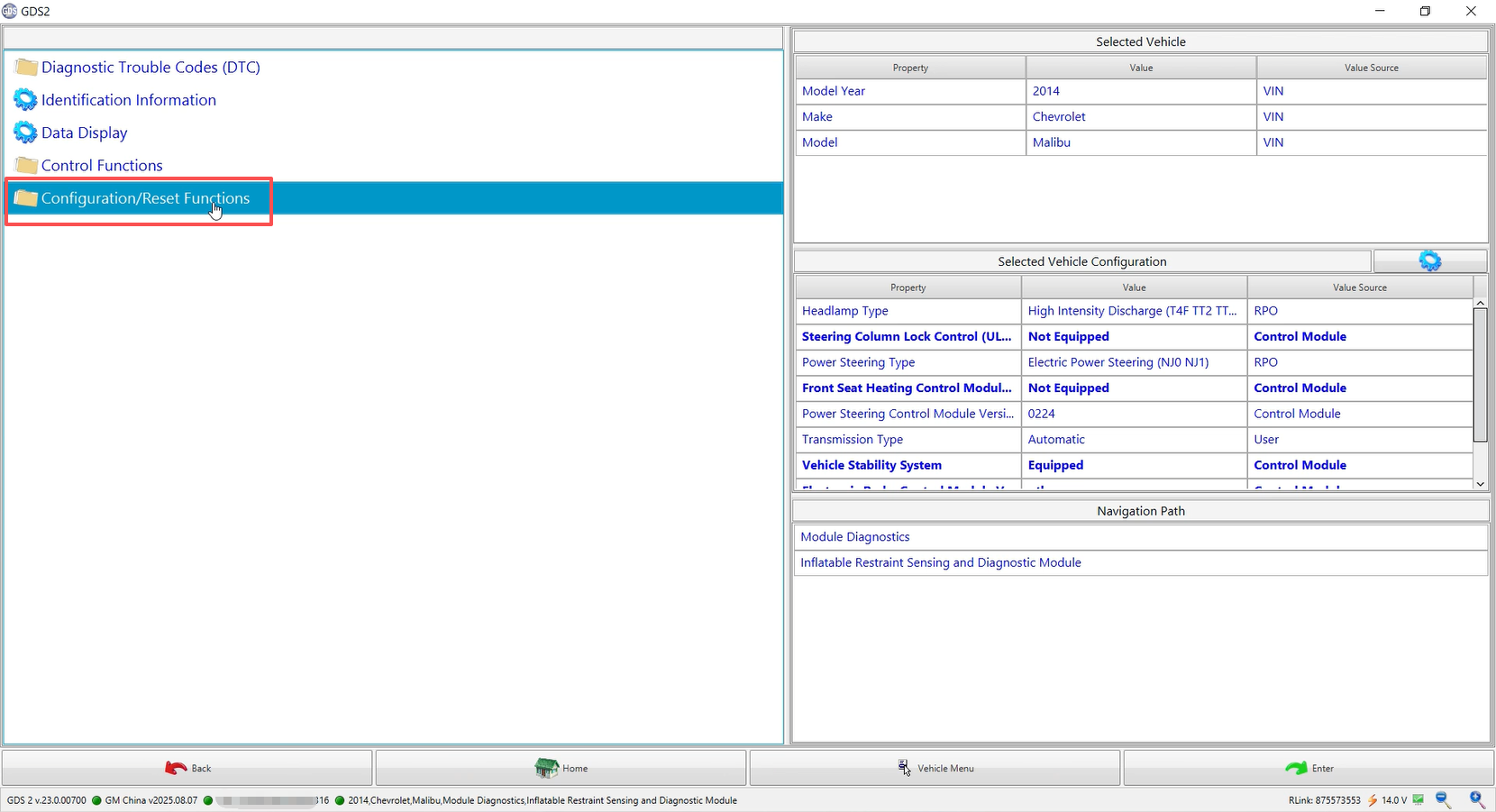
Click [Configuration/Reset Functions].
Note: Before configuring the module, check if the ignition switch is turned on.
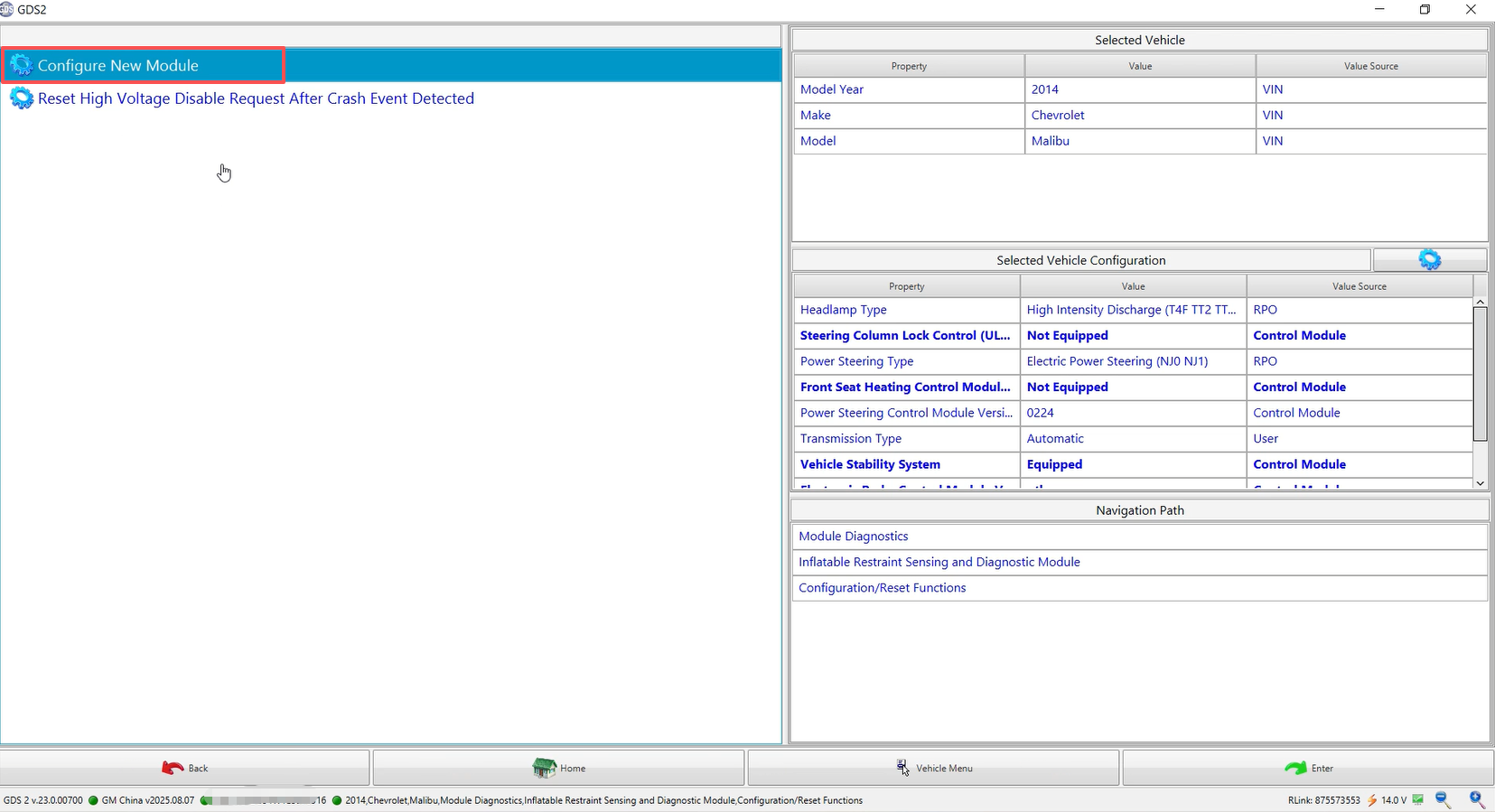
Click [Configure New Module] to perform new module configuration. Follow the on-screen prompts to complete the configuration. After configuration, return to the DTC page to clear any remaining fault codes.
Related Articles
Programming the Chevrolet Air Conditioning Control Unit with RLink J2534
Pre-Programming Preparation: I. Preliminary Requirements PC Setup: Prepare a computer pre-installed with OE software and ensure it is fully charged. Tip: It is recommended to keep the PC connected to a power source throughout the programming process ...
Programming the PCM Module using RLink and Witech 2.0 Software
Pre-programming Preparation: I. Preliminary Requirements Prepare a computer pre-installed with OE software and ensure it has sufficient power. Tip: It is recommended to keep the PC connected to a power source throughout the programming process to ...
Programming the SGW Module using RLink and Witech 2.0 Software
Pre-programming Preparation: I. Preliminary Requirements Prepare a computer pre-installed with OE software and ensure it has sufficient power. Tip: It is recommended to keep the PC connected to a power source throughout the programming process to ...
Programming Ford ABS Modules with RLink and FDRS
Pre-Programming Preparation: I. Preliminary Requirements PC Setup: Prepare a computer pre-installed with OE software and ensure it is fully charged. Tip: It is recommended to keep the PC connected to a power source throughout the programming process ...
Programming the MSM Module with RLink and Witech 2.0 Software
Pre-programming Preparation: I. Preliminary Requirements Prepare a computer pre-installed with OE software and ensure it has sufficient power. Tip: It is recommended to keep the PC connected to a power source throughout the programming process to ...