Programming the Transmission Control Module of General Chevrolet with SPS2 Software and RLink
Pre-Programming Preparation:
I. Preliminary Requirements
PC Setup: Prepare a computer pre-installed with OE software and ensure it is fully charged.
- Tip: It is recommended to keep the PC connected to a power source throughout the programming process to prevent interruptions caused by power loss.
Network Connection: The computer must be connected via a wired network to ensure a download speed of ≥5MB/s.
- Note: Some ECU data files are large; excessive network latency or disconnection will directly cause programming failure.
Vehicle Power: Connect the vehicle to a dedicated stable voltage power supply (programming power supply) and maintain the voltage between 13.2V and 14.5V.
- Warning: Voltage fluctuations can cause programming failure. Ensure stable power supply.
- Parking: Park the vehicle on level ground to prevent the risk of rolling. An inclined surface may lead to accidents during programming.
II. Pre-Programming Inspection
- Circuit Check: Verify that the ECU power supply and grounding circuits are normal. Confirm that the ECU information to be programmed matches the current vehicle's ECU information exactly.
Refurbished ECU: If programming a refurbished ECU, strictly follow the manufacturer's operating guidelines.
- Some refurbished ECUs (e.g., anti-theft related) may fail OEM software verification.
- Used ECUs may need to be wiped (cleared of data) before use; otherwise, programming will fail.
- Recommendation: It is recommended to use a brand new ECU for programming, and a stable voltage power supply must be connected during the process.
III. Programming Procedures
- Follow Instructions: During programming, carefully read the prompts within the OEM software and execute steps strictly. Do not perform unauthorized operations.
IV. Troubleshooting Programming Failures
- Initial Check: If programming fails, first check the vehicle status and the connection of the diagnostic equipment.
- Retry Method: If the status is normal, it is recommended to let the vehicle sleep for 30 minutes before retrying. Power cycling or sleep mode can clear cached error data and improve the success rate of the retry.
- Display Issues: If the vehicle instrument cluster fails to display information correctly after a failure, it is recommended to re-program immediately. Do not disconnect the equipment or power, and do not turn off the ignition.
⚠️ Important Note: Please try to use a brand new ECU for programming, and ensure a stable voltage power supply is connected during the process.
Take out the RLink device, connect it to the vehicle's OBD diagnostic port and the computer's USB port respectively, and ensure a secure connection.
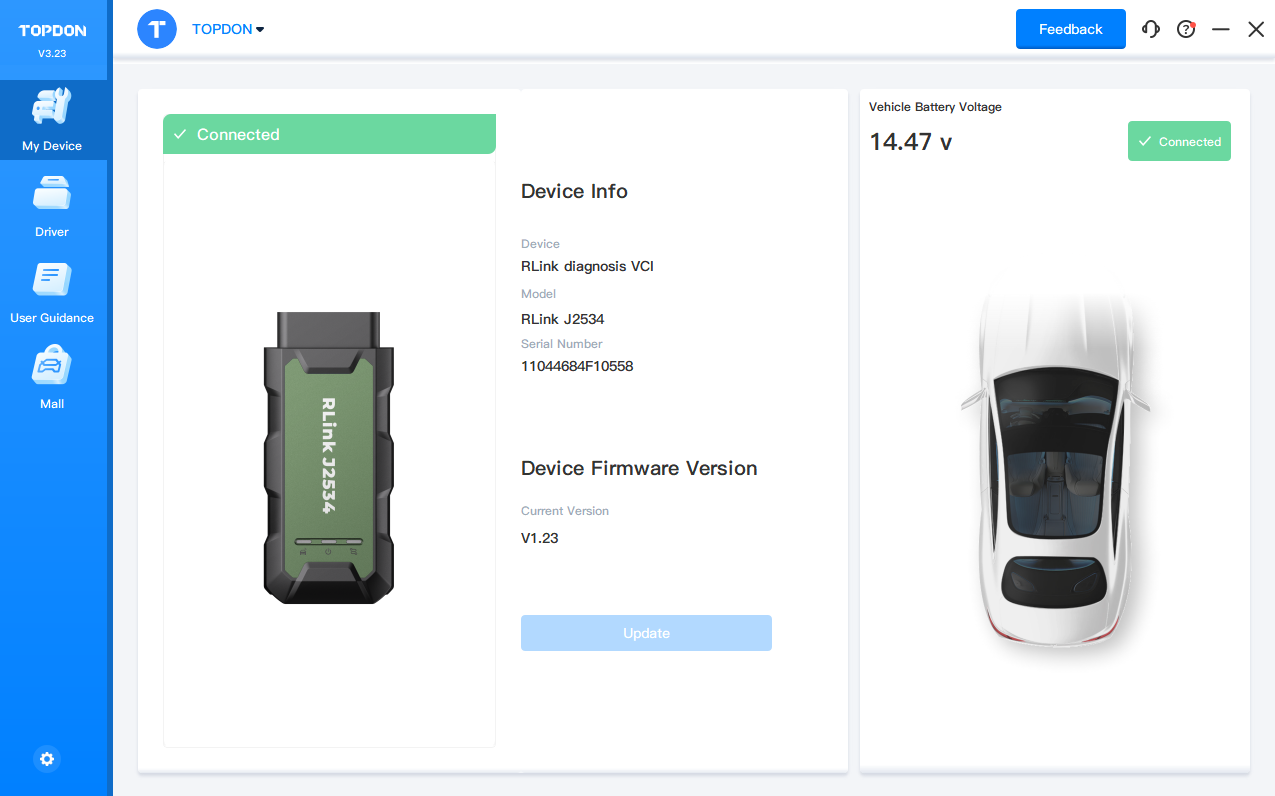
After the device connection is ready, launch the RLink Platform software. Confirm the vehicle connection status through the connection information in the platform and verify whether the driver has been downloaded.
Note: Before programming with SPS2 software, it is recommended to log in to your RLink Platform account to check for software or firmware updates. If there are any updates, they must be installed before programming the vehicle.
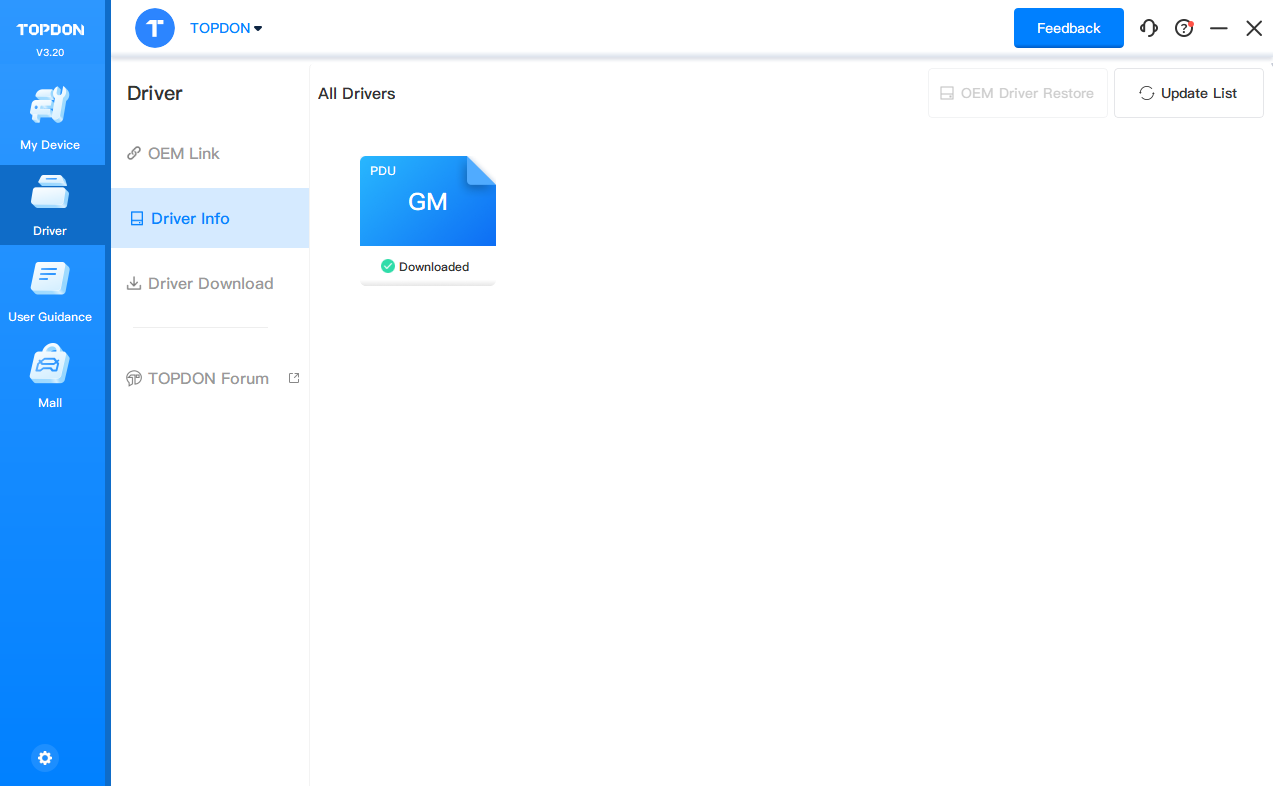
Open the GM official website, click [View] to run the subscribed SPS2 software.
Note: The software description information will be updated dynamically, and the final content shall prevail as published on the GM official website.
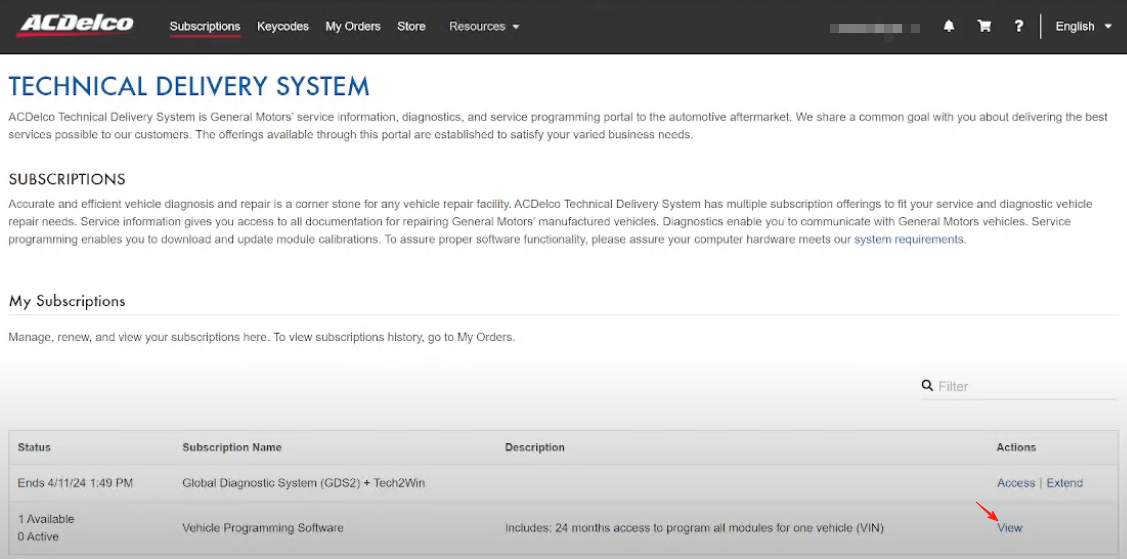
Click [Add Vin] to enter the VIN of the vehicle to be programmed.
Note: After binding this vehicle, the subscribed programming permission will be bound to the vehicle, and the subscription cannot be used for programming on any other vehicle afterwards.

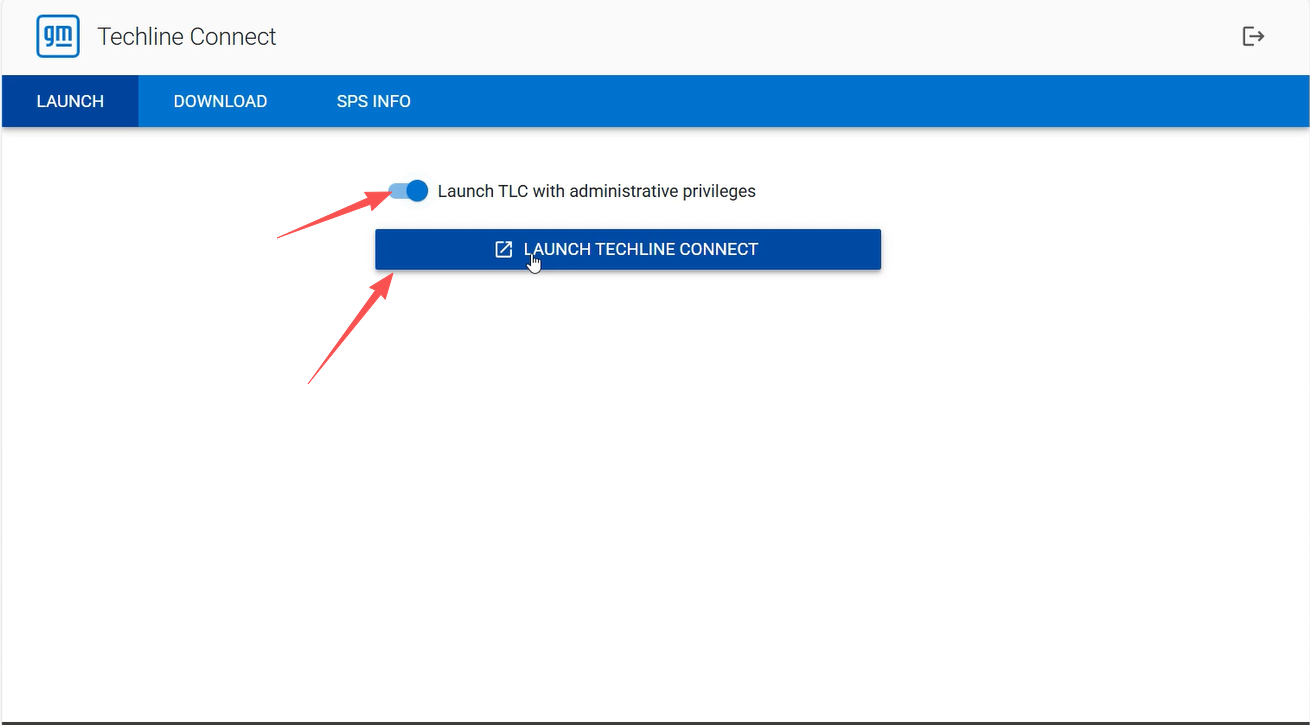
Select [Launch TLC with administrative privileges] and click [Launch Techline Connect] to start the Techline software.
Important Note: If the relevant Techline software is not installed, the software installation will be executed automatically after launching Techline. Since the installation may take a long time, be sure to reserve enough time in advance to complete the installation and ensure the smooth progress of subsequent operations.
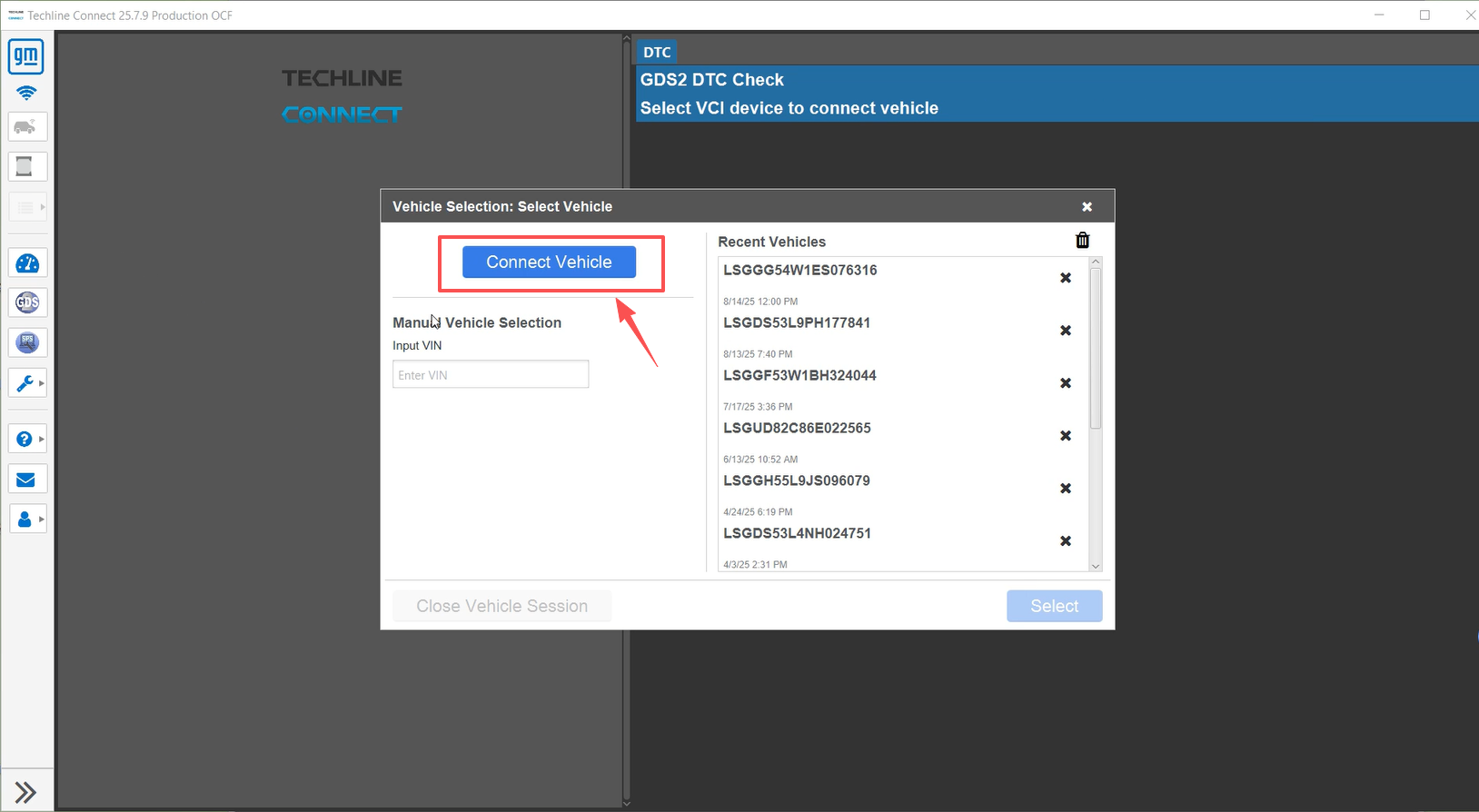
After entering the diagnostic software homepage, click [Connect Vehicle], then select the corresponding driver mode.
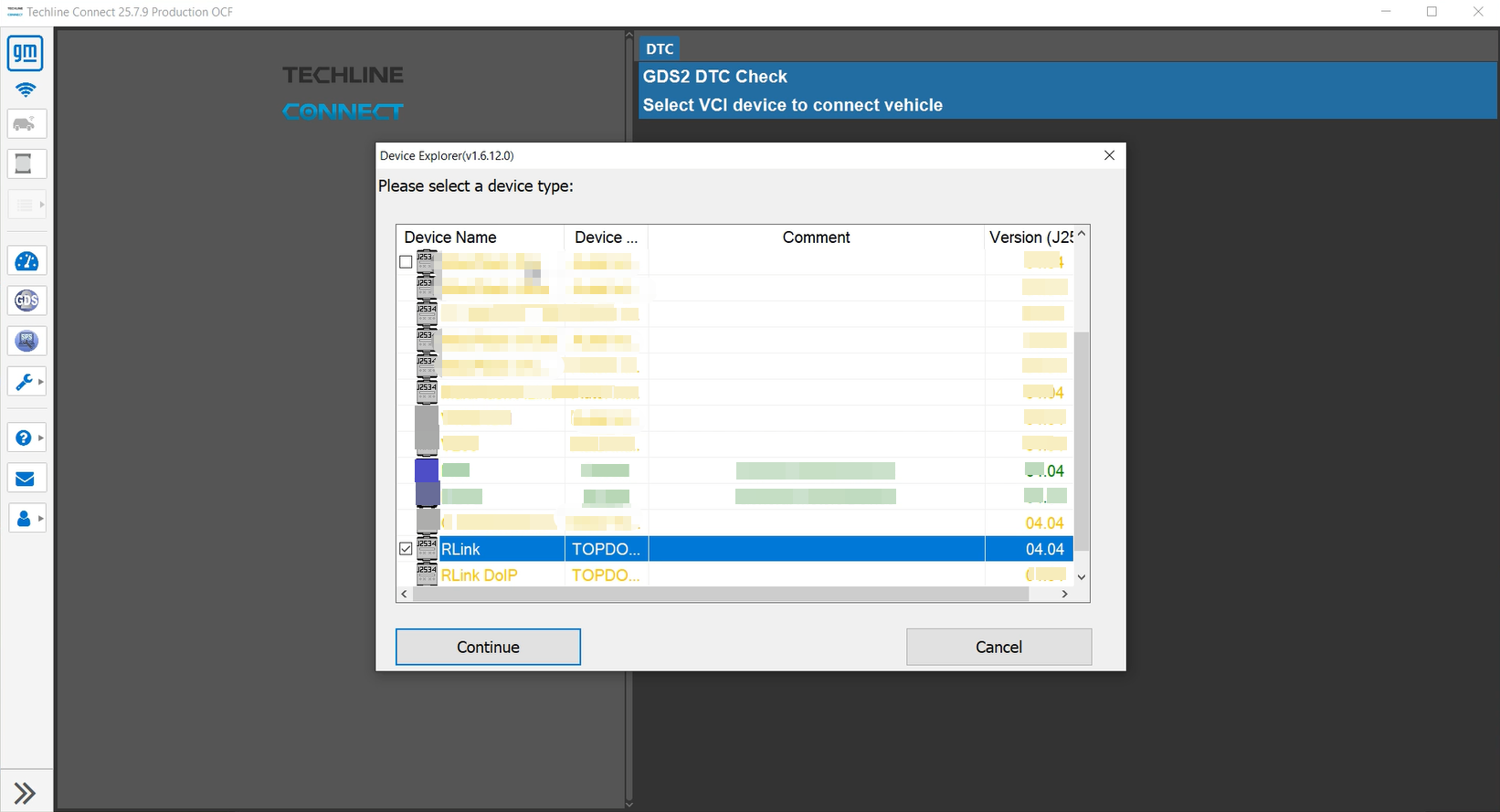
Select the [RLink] driver mode or [RLink DOIP] driver mode from the options (both modes are compatible with RLink device connection), and click Continue after the selection is completed.
Important Note: For diagnostic operations on vehicles supporting the DOIP (Diagnostic communication over Internet Protocol) protocol, the [RLink DOIP] driver mode must be selected exclusively; otherwise, the connection cannot be established normally.
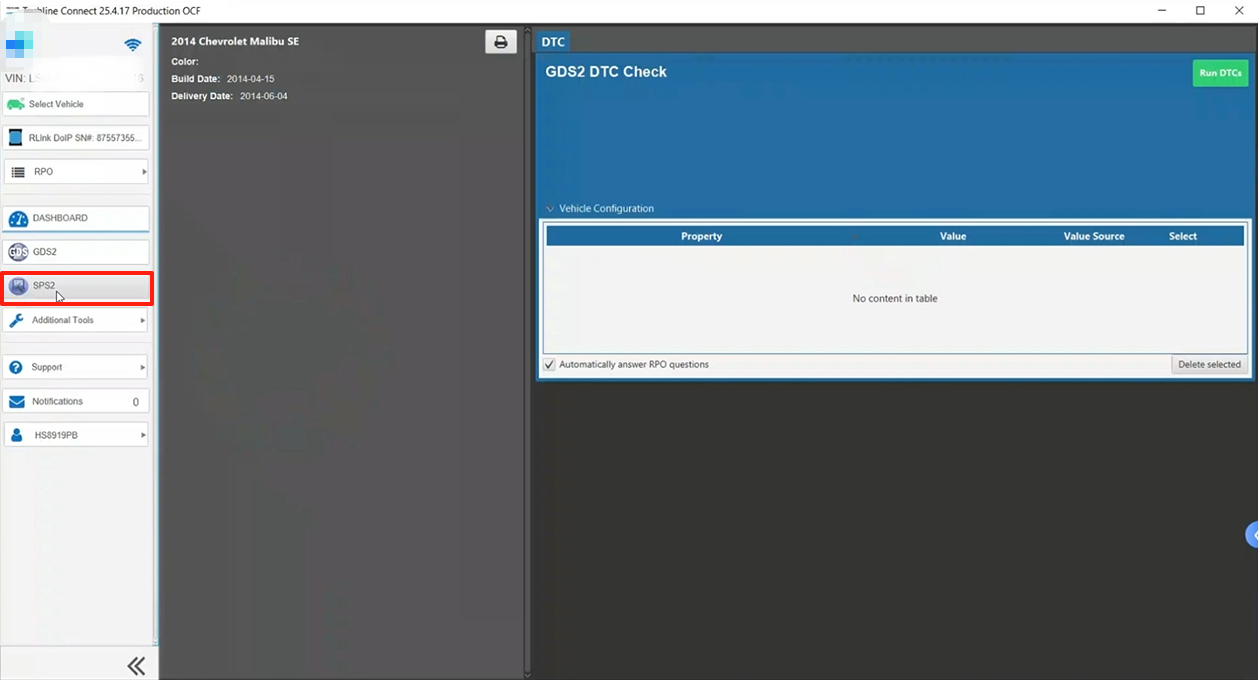
When the RLink VCI successfully establishes a connection with the vehicle, the system will automatically read the relevant vehicle information. After carefully verifying that the information is accurate, click the [SPS] icon to enter the programming operation page.
Before entering the SPS programming software, the SPS software will automatically start the verification program to compare and verify the vehicle information with the server information.
Important Note: The verified vehicle information must be consistent with the subscription information; otherwise, reading or verification failure will occur. During the verification and subsequent programming process, ensure network stability and prioritize the use of a wired network to ensure the smooth progress of programming.
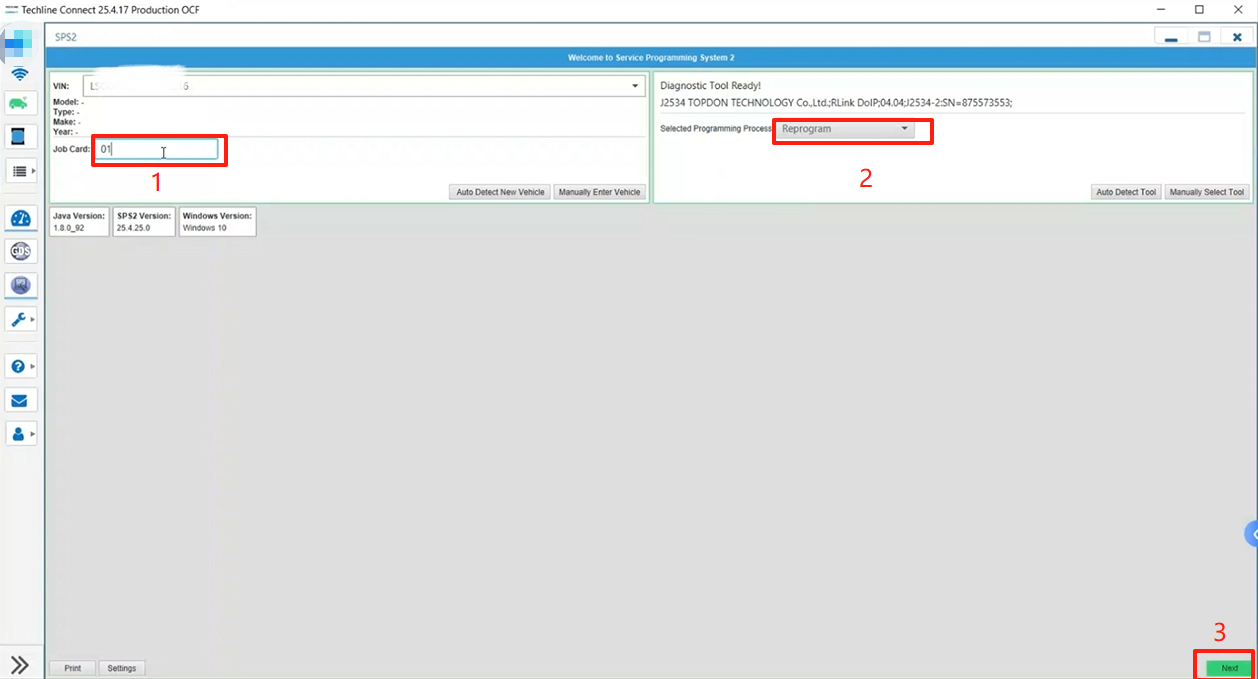
After confirming the programming requirements, select the [Reprogram] mode and click [Next] to proceed to the next step.
Important Note:
- Some versions of the software include a work order filling function; if this option is not available, no filling is required, and the programming mode can be selected directly.
- The mode selection must accurately match the vehicle condition: select the [Reprogram] mode if the ECU has not been replaced, and select the [Replace and Reprogram] mode if a new ECU has been replaced. During the subsequent download of programming files, the SPS2 software will download the relevant programming files based on this information to reduce the risk of programming failure.
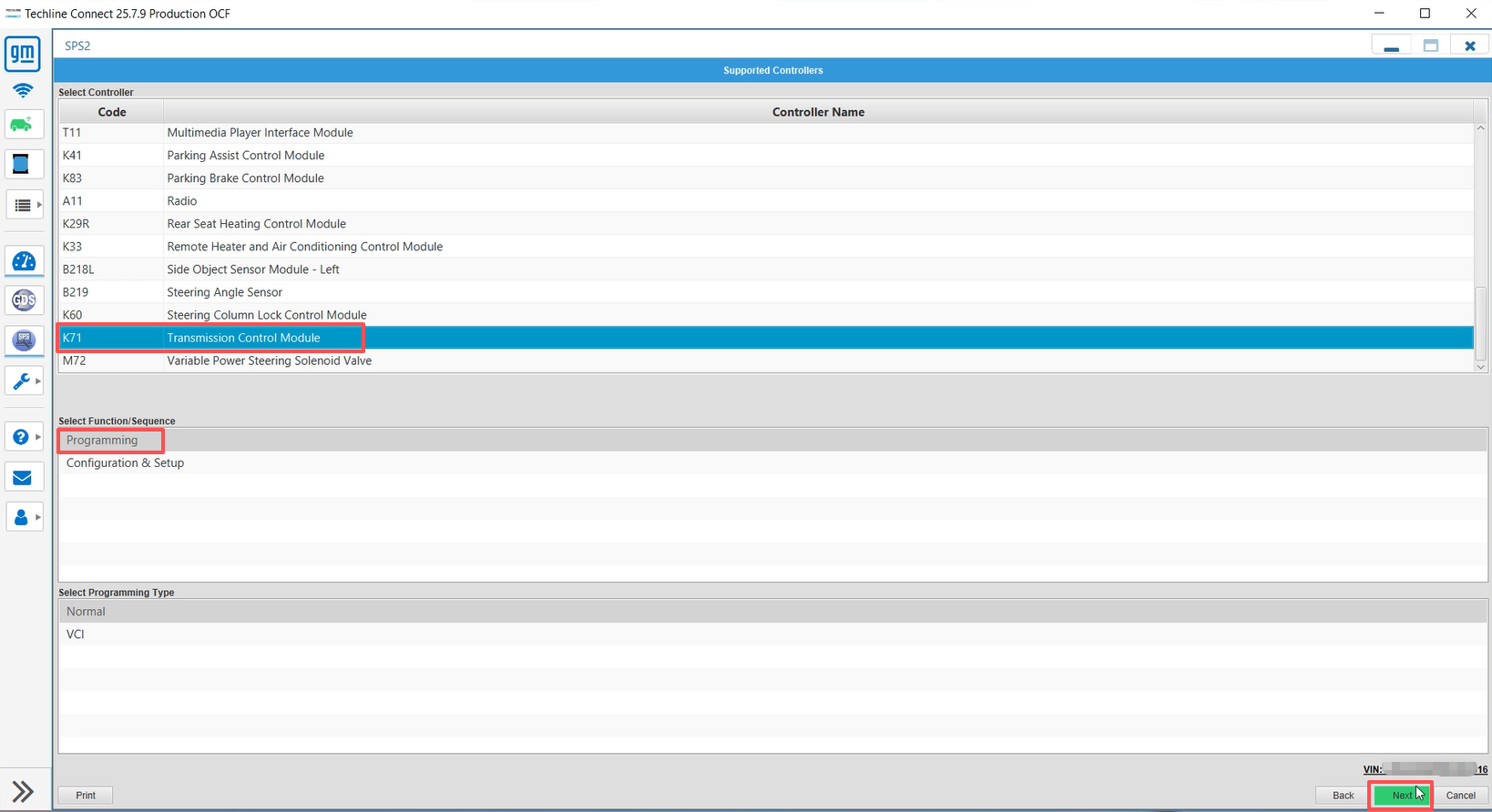
Select [K71 Transmission Control Module] and click [NEXT].
Note: For some vehicle models, the anti-theft matching step must be completed after programming when the transmission ECU is replaced. Be sure to first query the detailed requirements of the corresponding vehicle model on the GM official website and prepare the necessary equipment to avoid programming failure due to missing processes or insufficient equipment.
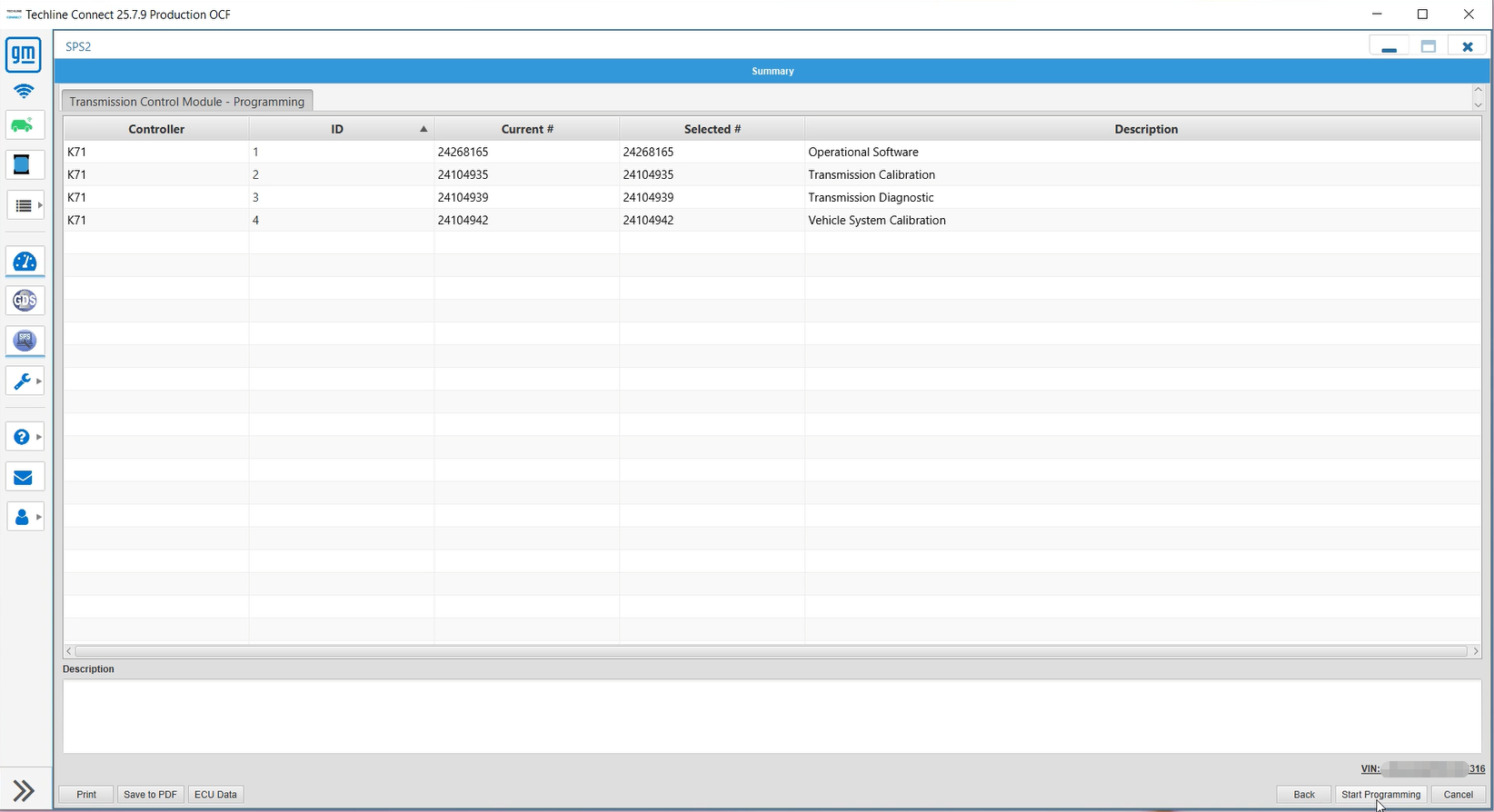
Before programming, confirm that the vehicle diagnostic power supply and RLink VCI connection are normal, then click [Start Programming].
Programming in progress
Prompt: Do not exit halfway during programming; otherwise, the ECU will be damaged.

Programming of the Transmission Control Module (TCM) is completed, click [OK].
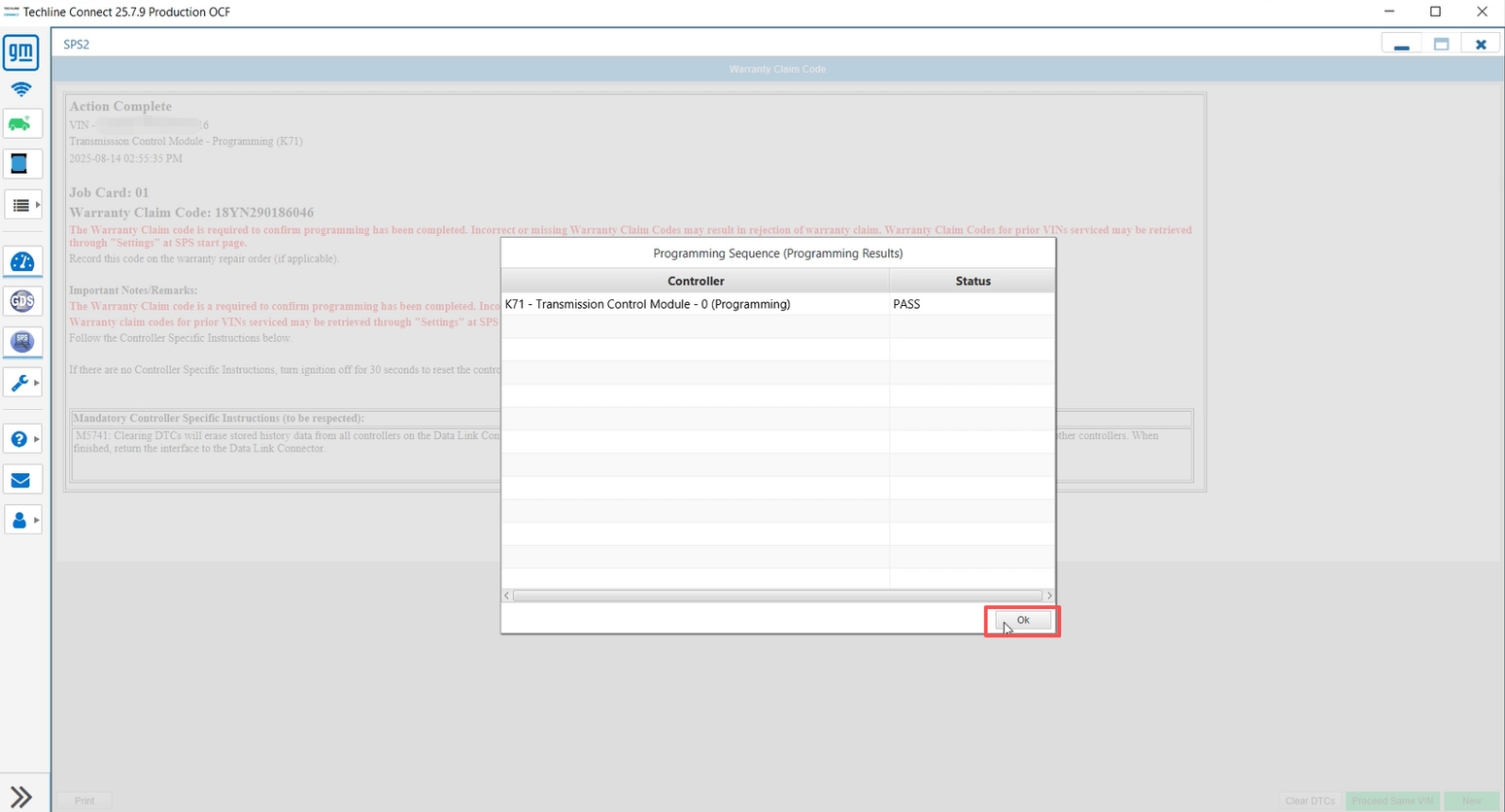
After programming is completed, click the [GDS2] icon to enter the diagnostic system and match the transmission.
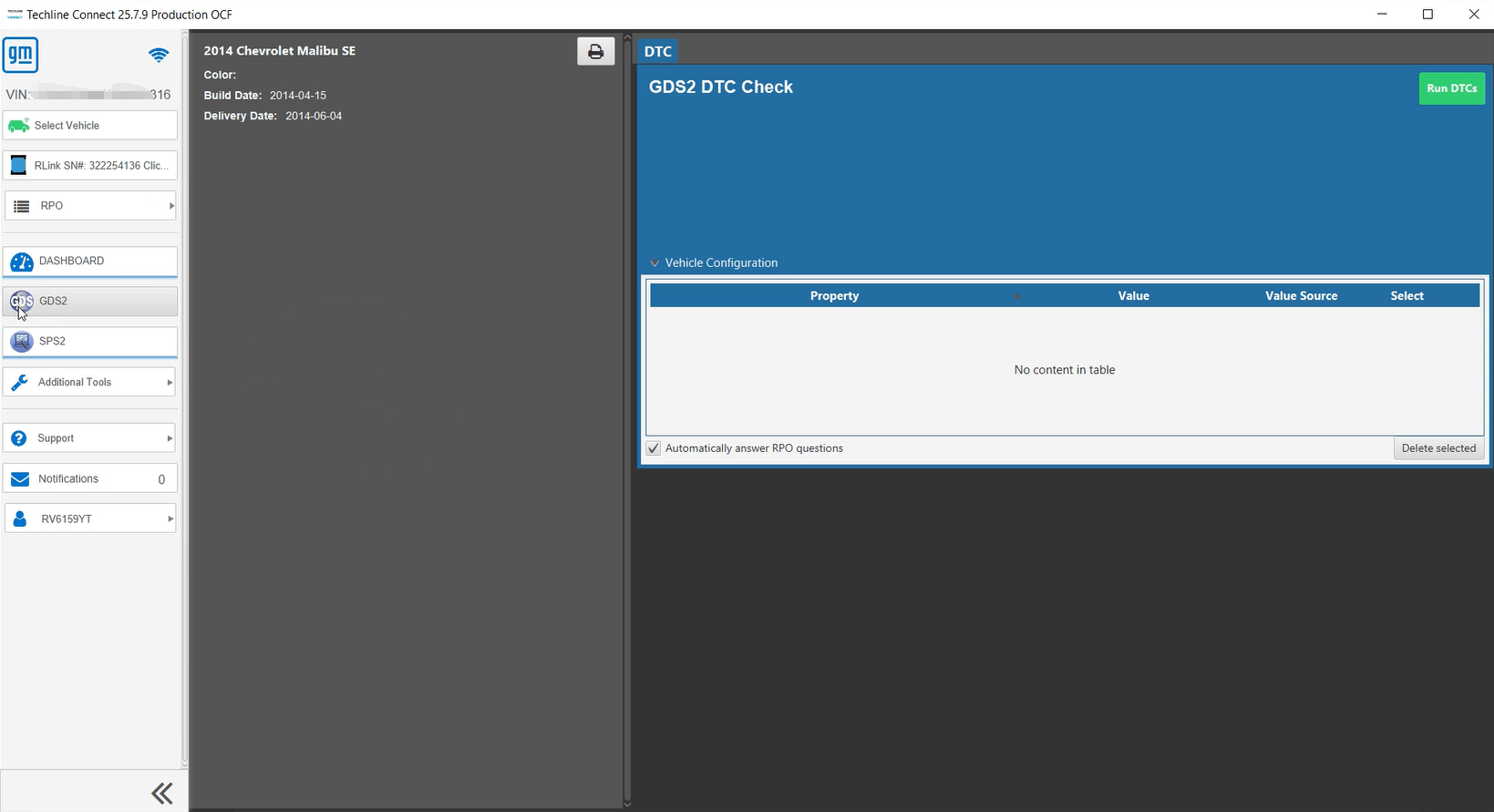
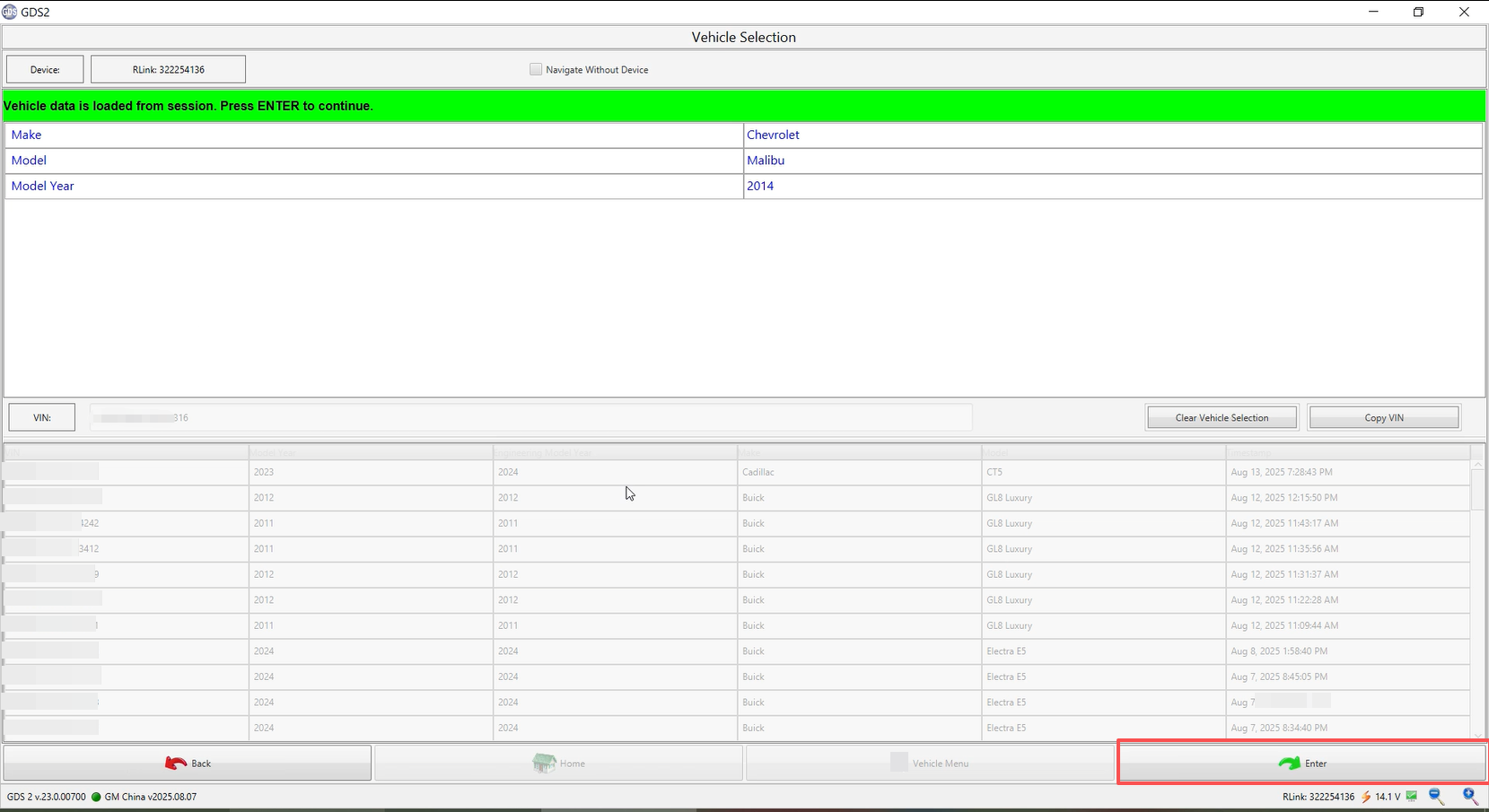
After confirming that the vehicle information is correct, click [Enter].
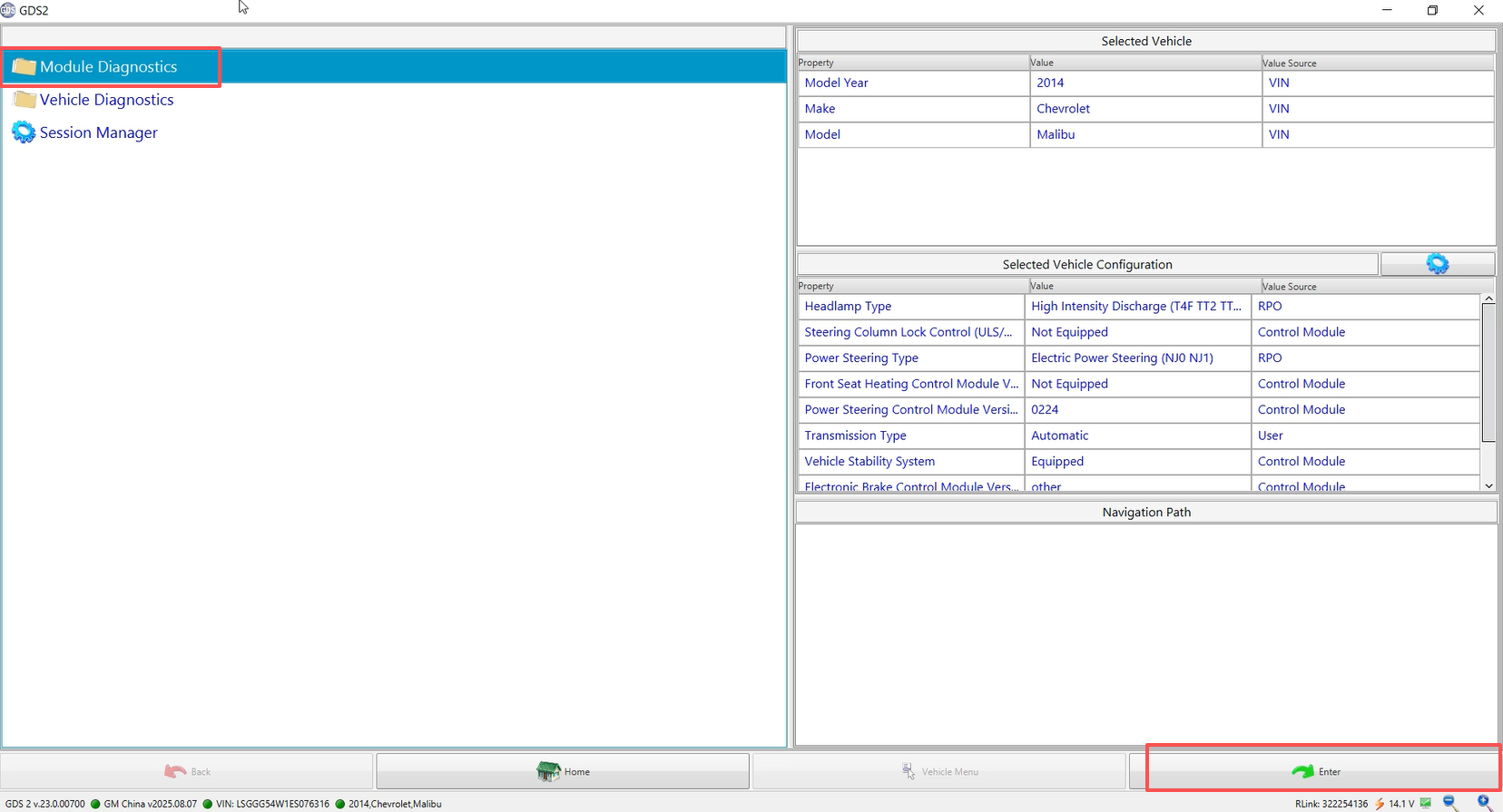
Select [Module Diagnostics] and then click [Enter].
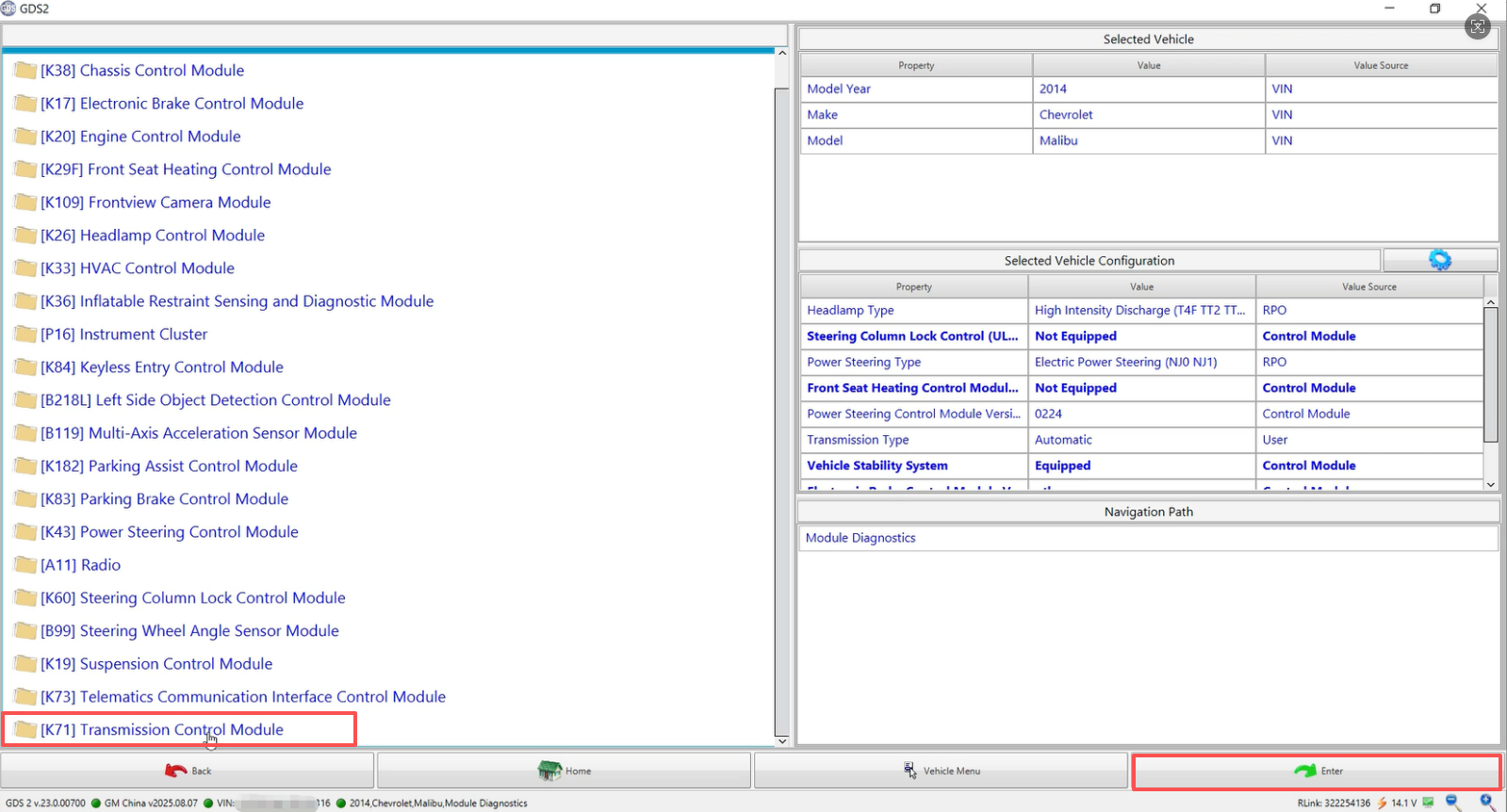
Locate and select [K71 Transmission Control Module] and click [Enter].
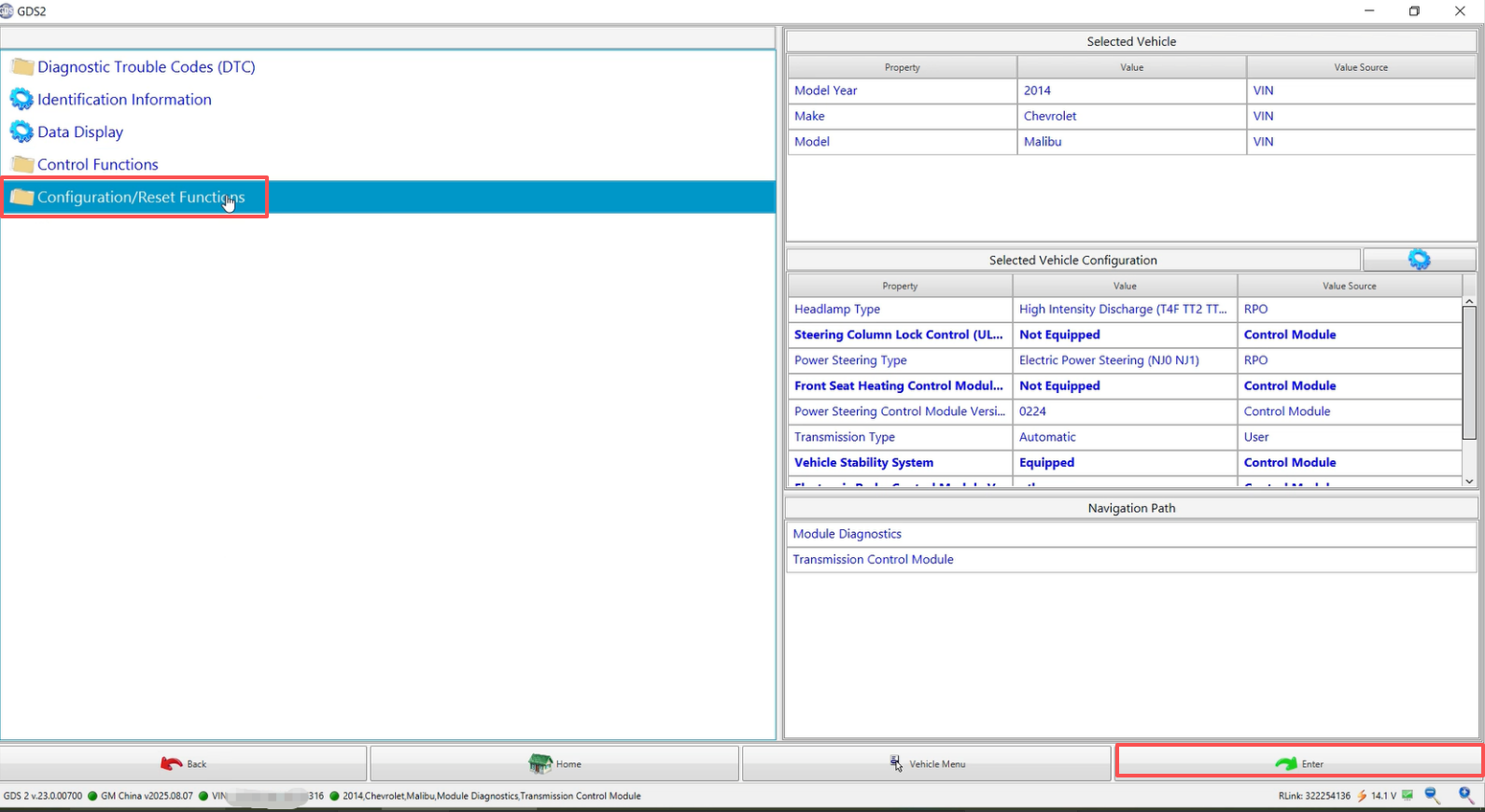
Select [Configuration/Reset Functions] and click [Enter].
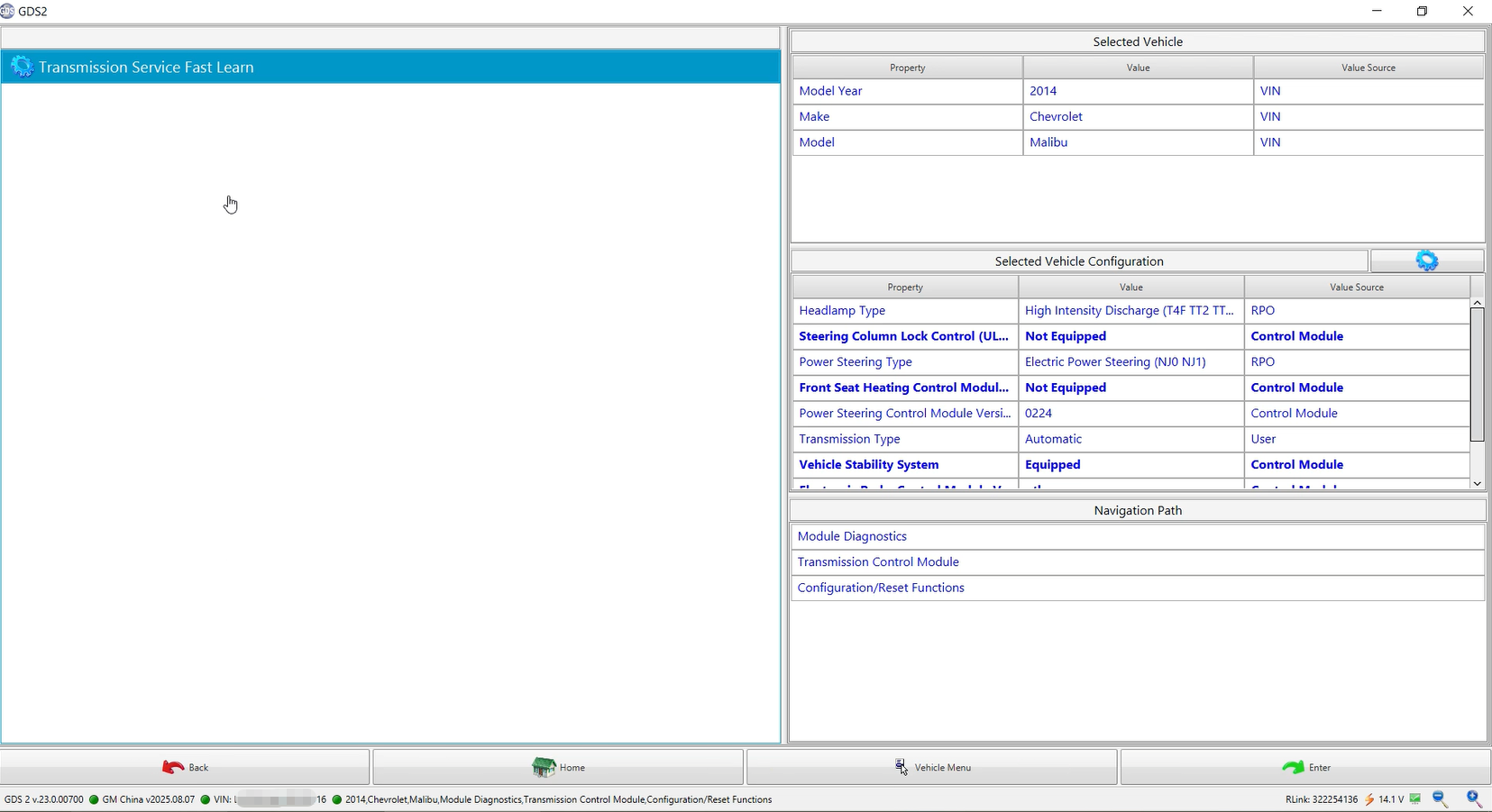
Select [Transmission Service Fast Learn] and click [Enter] to perform transmission learning and matching.
Note: During transmission learning, strictly follow the prompts. If the learning fails, the learning operation can be repeated.
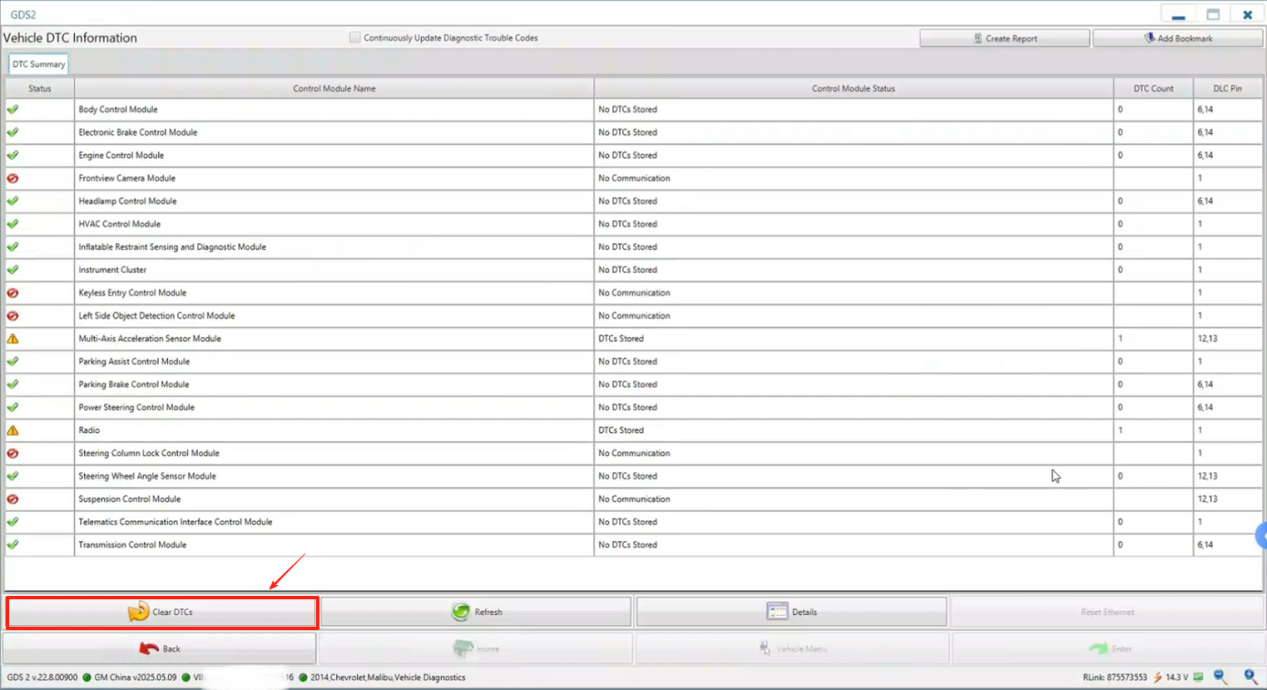
Transmission learning and matching are completed, clear the fault codes, and perform a vehicle test.